
Shaping Messy DFIR Data with Sieve
Spoke and Mill are good at what they do once the data is in decent shape. The problem is that evidence almost never shows up in decent shape. One export calls it Image, the next calls it NewProcessName. One log is in UTC, the other is in the analyst’s local time with an offset tacked on. Sysmon and the Security log both record the same process start a second apart, and now every edge in your graph is doubled. Most of an investigation’s first hour goes to fixing that by hand in a spreadsheet.
So I built Sieve (it rhymes with “give”), a browser-based tool that shakes raw exports into clean CSVs and hands them straight to Mill or Spoke. You can try it right now at jon.glass/sieve.
Goals
- Map once, use everywhere. Every source gets mapped to the same handful of fields: timestamp, host, user, parent process, process, source, destination and a description of the event.
- Everything in UTC. ISO timestamps, offsets, US-style dates, epoch seconds and milliseconds, and Windows FILETIME all come out the same way.
- Less noise. Exact duplicates go, and so does the same event logged twice by two different sources.
- Feed the other tools. One click sends a timeline to Mill or an edge list to Spoke.
- Keep it local. Like Spoke, Mill and Huddle, everything runs in the browser. There is no server, and nothing gets uploaded.
Sieve opens with a small Sysmon sample loaded, and the Example data menu has a Hayabusa CSV and a proxy log too. For this post I wanted something real, so I used a recording from the OTRF Security-Datasets project: Empire doing PsExec-style lateral movement through the service control manager (empire_psexec_dcerpc_tcp_svcctl). It’s 4,348 events from Sysmon, Security, PowerShell and System logs across three hosts, all in one JSON file with 186 different fields. That is exactly the kind of mess Sieve is for.
Step 1: Load
Drop a CSV, TSV, JSON or NDJSON file onto the Load box, pick one with choose a file, or paste text and click Parse. Sieve figures out the delimiter for CSVs and flattens nested JSON, so a field like winlog.event_data.Image becomes a column you can map.
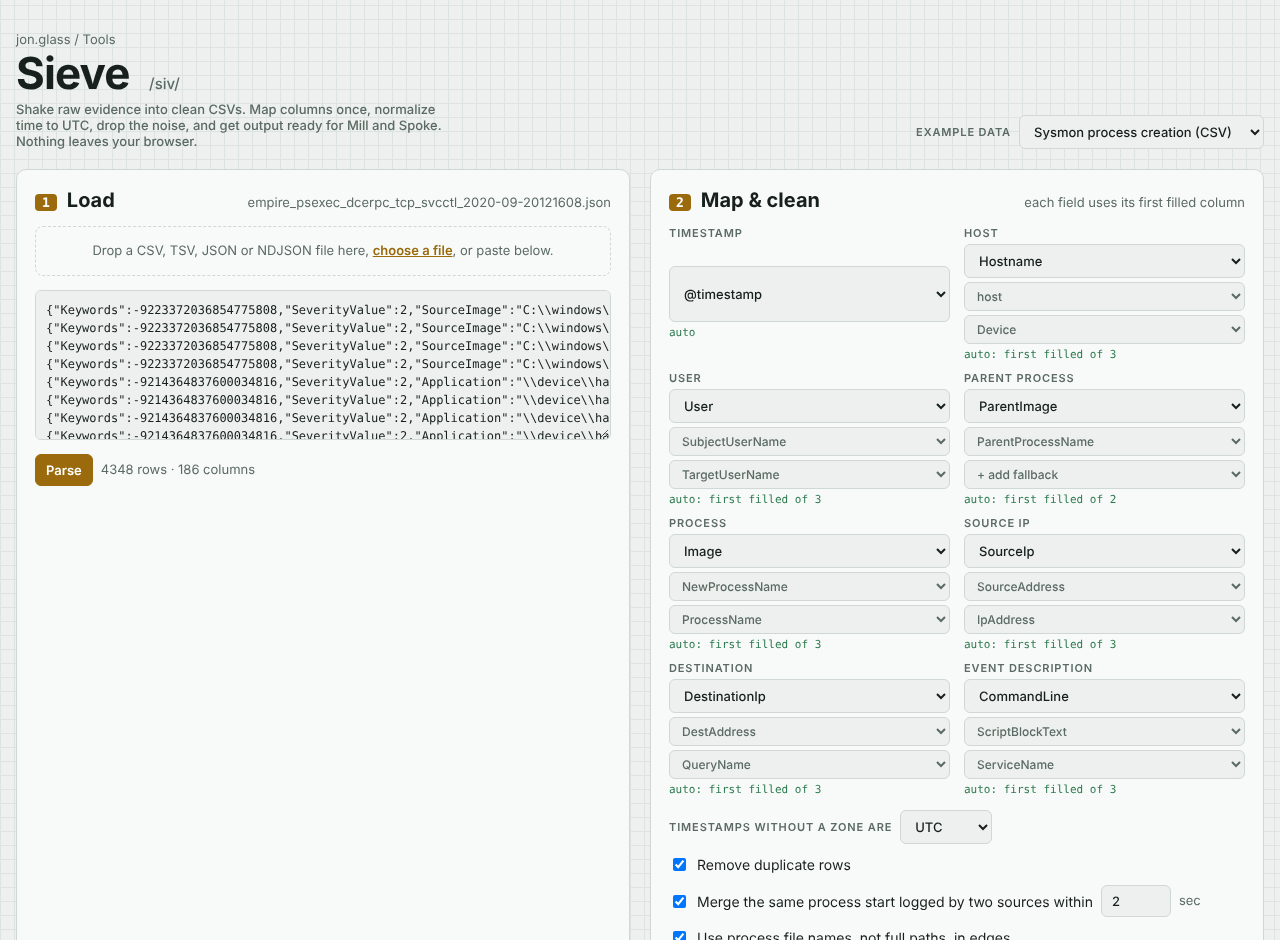 4,348 rows and 186 columns from one Security-Datasets JSON file. Sieve has already mapped every field on the right.
Step 2: Map and Clean
This is where Sieve earns its keep. Each field gets up to three columns, and for every row Sieve uses the first one that actually has a value. That matters because a mixed log doesn’t keep things in one place. Sysmon puts the process in Image, the Security log puts it in NewProcessName, and other events use ProcessName. Map all three and every row gets a process.
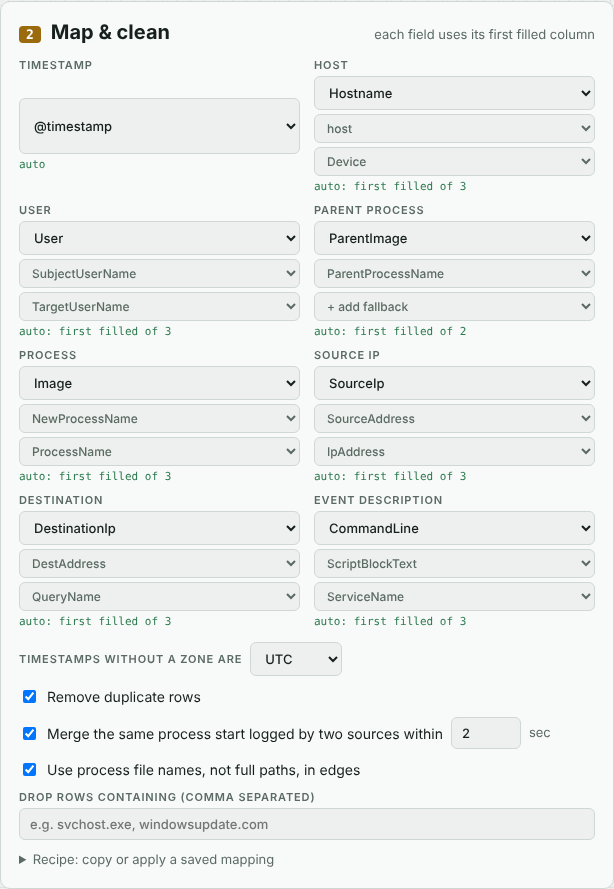 Each field shows its main column with fallbacks under it. Green “auto” means Sieve picked it.
Sieve guesses all of this from the column names. It prefers names it knows from common tools, like Hostname over a log collector’s host, and it skips ID, GUID and SID columns so you get User instead of SubjectUserSid. It also treats Sysmon’s - as empty. If a guess is wrong, pick another column, or use + add fallback to add one.
Under the mapping are the cleanup options:
- Timestamps without a zone are sets the zone for times that don’t carry one. Timestamps with an offset or a
Zare converted no matter what. - Remove duplicate rows drops exact copies.
- Merge the same process start logged by two sources is explained in the next section.
- Drop rows containing takes a comma-separated list, like
OfficeC2RClient.exe, windowsupdate.com, and throws out any row that mentions one of them.
One Process, Two Logs
When both Sysmon and process-creation auditing are turned on, every process start is logged twice: once as Sysmon Event ID 1 and once as Security 4688. They’re the same event, but they land up to about a second apart, so exact deduplication doesn’t catch them. In the Empire data, every parent-to-child edge showed up twice.
Sieve merges two events when they have the same host, parent and process, come from different log sources, and land within a window you set (2 seconds by default). The first one is kept, and any blank user, IP or description is filled in from its twin. A sources column in the timeline shows which logs a row came from, so nothing disappears quietly. Because the sources have to differ, a burst of real repeated launches from one log is never collapsed.
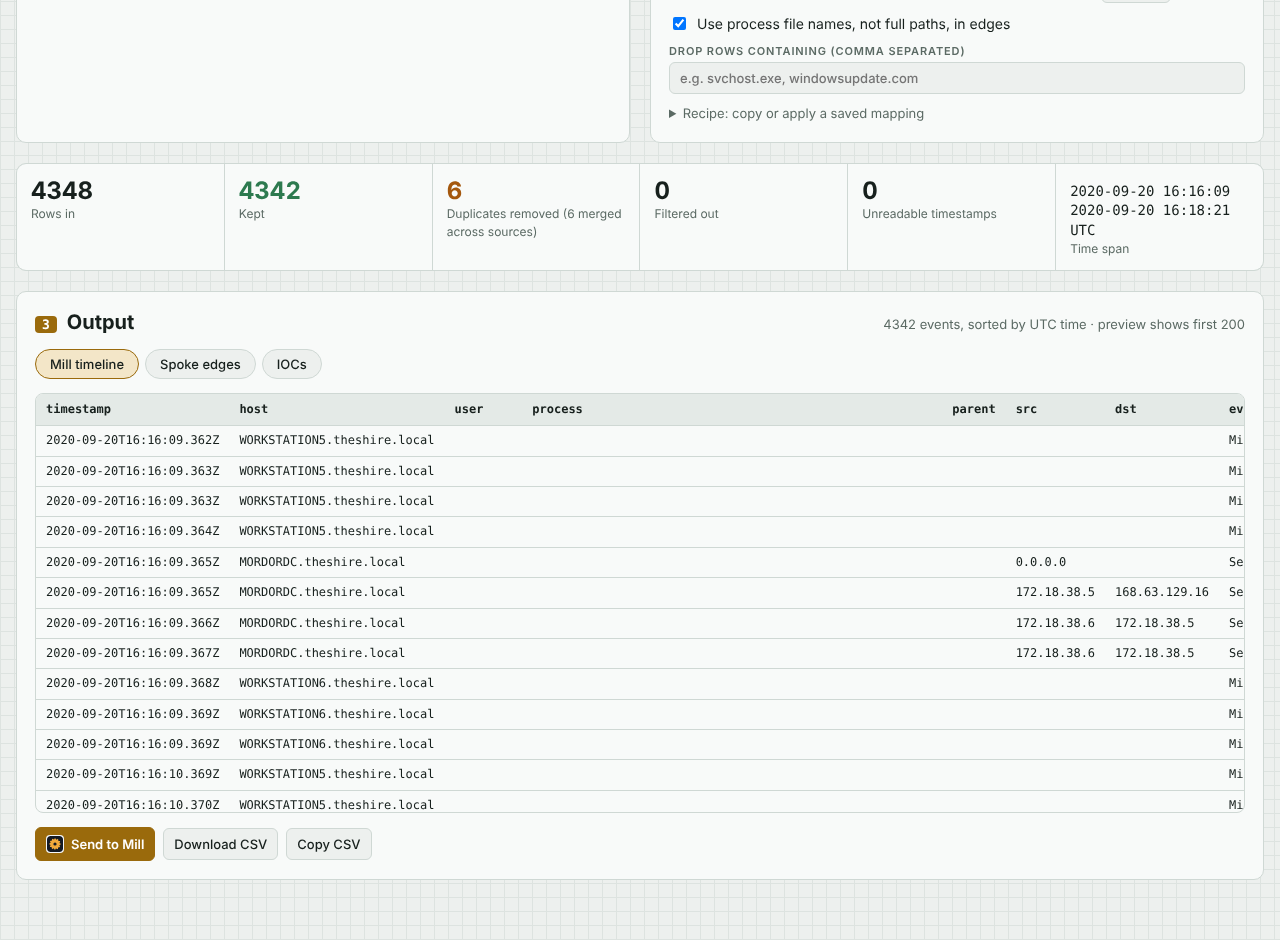 4,348 rows in, 4,342 kept. Six process starts were merged across Sysmon and Security, and the whole case spans just over two minutes.
Step 3: Pick an Output
The Output panel has three tabs.
Mill timeline is every kept event, sorted by UTC time, with the mapped fields plus sources and dataset columns. When a row has no description, Sieve builds one from the log channel and event ID, like Security 5156 · 172.18.38.5.
Spoke edges turns the rows into an edge list with a count and first and last seen times for each edge. The Edge menu picks the relationship: parent → process, user → process, user → host, or source → destination. Process paths are trimmed to file names by default so the graph stays readable.
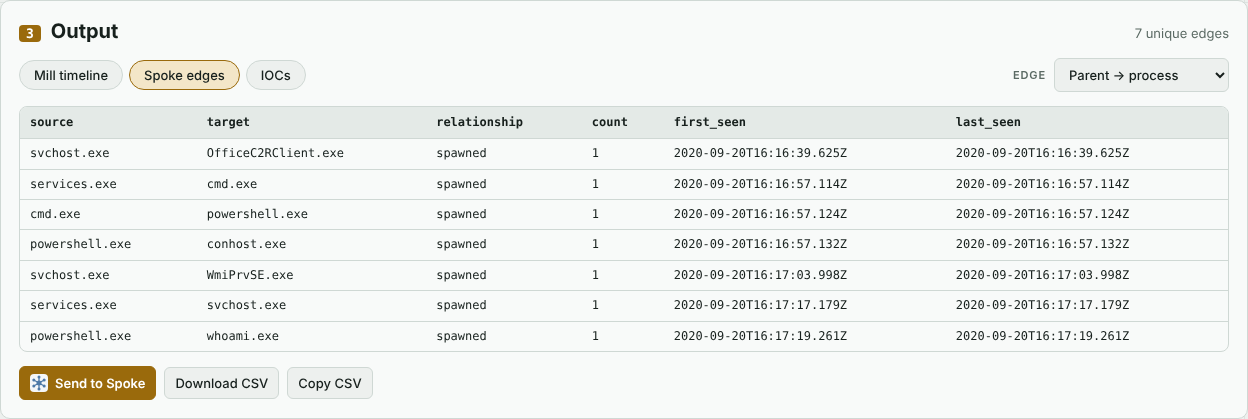 Seven unique edges, each seen once after merging. services.exe → cmd.exe → powershell.exe → whoami.exe is the attack.
IOCs pulls URLs, domains, IPv4 addresses and MD5, SHA-1 and SHA-256 hashes out of every field, with how often each one appears and when it was first seen. Private addresses are labeled, and Defang turns http into hxxp and dots into [.] for pasting into tickets and chat.
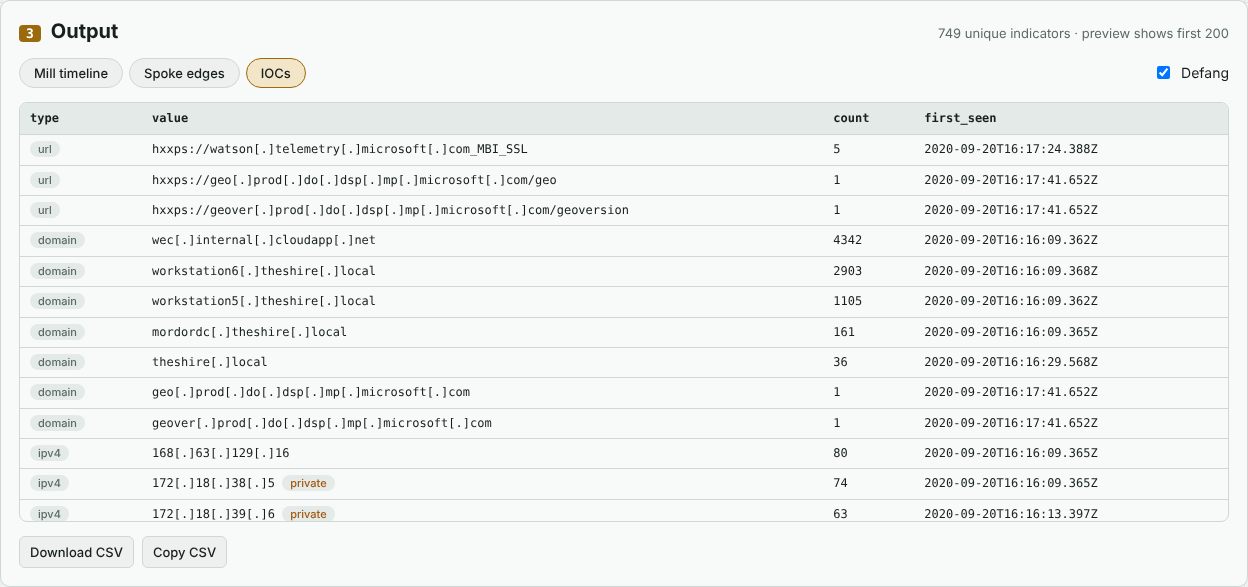 749 indicators from the Empire data, most of them Sysmon hashes. Not everything in the list is bad: wec.internal.cloudapp.net is the log collector, and it shows up in every row.
Step 4: Send It
Below the output are three buttons:
- Send to Mill or Send to Spoke (the button follows the tab you’re on) opens the other tool with the data already loaded.
- Download CSV saves the current tab as a file.
- Copy CSV puts it on the clipboard.
Send to Mill passes the timeline through your browser’s local storage, since Sieve and Mill live on the same site. Mill picks it up, adds it as a source and clears it out. All 4,342 events from the Empire data landed in Mill with the timestamp column already selected.
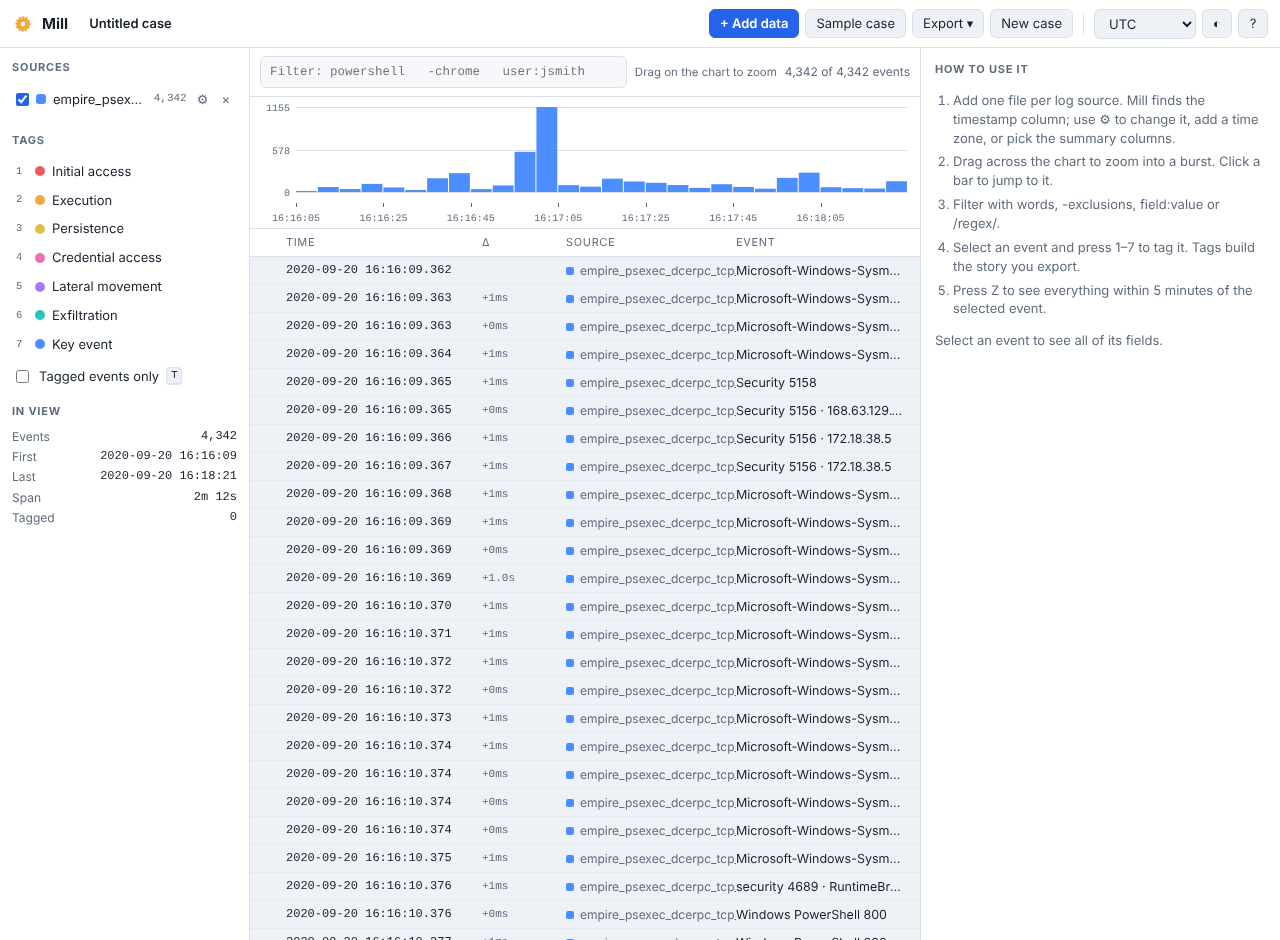 Mill with the Empire timeline from Sieve. The big spike lands seconds after the PsExec service launches cmd.exe at 16:16:57.
Send to Spoke builds the same kind of share link Spoke makes itself, with the data compressed after the #, and the columns are already mapped. Spoke opens with the graph drawn.
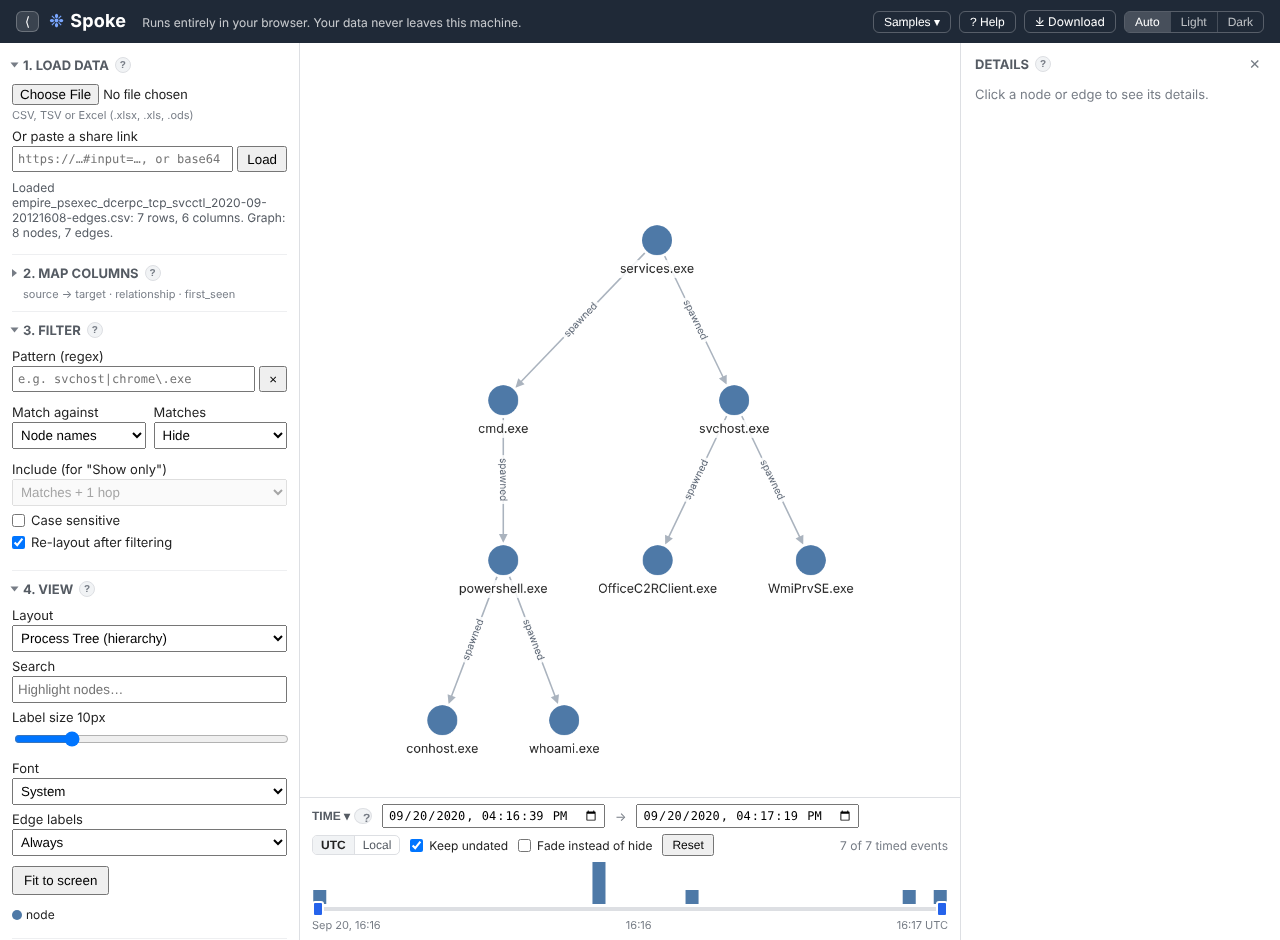 Spoke’s process tree for the Empire data. The services.exe → cmd.exe → powershell.exe branch is the PsExec service starting Empire’s stager, followed by whoami.
Browsers cap links at about 2 MB, so a really big edge list won’t fit. Sieve tells you when that happens, and Download CSV plus Spoke’s file picker does the same job.
Recipes
Once you’ve mapped a source, you probably never want to do it again. Open Recipe under the cleanup options and copy the JSON. It holds the column mapping with its fallbacks, the time zone, and the deduplication, merge and drop settings:
{
  "sieve": 1,
  "map": {
    "timestamp": ["@timestamp"],
    "process": ["Image", "NewProcessName", "ProcessName"],
    "parent": ["ParentImage", "ParentProcessName"]
  },
  "tzOffsetMinutes": 0,
  "dedupe": true,
  "merge": true,
  "mergeWindowSec": 2,
  "exclude": ""
}
Next time, load the file, paste the recipe and click Apply recipe. Columns that don’t exist in the new file are skipped, so one recipe can cover a family of similar exports.
Try It
Open Sieve and click Spoke edges, then Send to Spoke. That’s the built-in Sysmon sample going from raw rows to a process tree in about three clicks. Then grab a recording from Security-Datasets or run EVTX-ATTACK-SAMPLES through Hayabusa and see what Sieve makes of it.
The auto-mapping is only as good as the column names it has seen. If it guesses wrong on an export you use all the time, send me the header row and I’ll teach it.