
Building DFIR Playbooks with Huddle
Most incident response playbooks I’ve seen live in one of two places: a wiki page nobody has opened since the tabletop, or someone’s head. When the alert fires at 2 a.m., neither one is much help. What responders actually need is short: what to do, in what order, who owns it, and what to do when the answer is “it depends.”
So I built Huddle, a browser-based tool for building DFIR playbooks out of reusable plays. You search a library of incident response actions, drag them into the phases of the IR lifecycle, wire them together with decisions, and hand responders a runbook they can actually work from. You can try it right now at jon.glass/huddle.
Goals
- Built from plays, not prose. A play is one action with its steps, tools, artifacts, roles, timing and ATT&CK techniques. Playbooks are just plays arranged in order.
- Organized by the lifecycle. Preparation, Identification, Containment, Eradication, Recovery and Lessons Learned are the lanes everything sits in.
- Something responders can use. A diagram is nice, but the output that matters is a checklist with owners and timestamps.
- Extensible like CyberChef. Your own plays, your own libraries, and the whole playbook in a link.
- Keep it local. Like Spoke, everything runs in the browser. There is no server and no account, and nothing gets uploaded.
Huddle ships with 69 plays across the six phases and five templates: Ransomware, Business Email Compromise, Compromised Credentials, Malware on Endpoint and Web Application Compromise. The templates are a fast start, but the best way to see how it works is to build one from scratch. Let’s do a credential-harvesting phishing playbook.
Step 1: Start with an Empty Playbook
Open Huddle. If you’ve used it before, pick New → Blank playbook. You get six empty lanes, one per phase, and a prompt offering the templates if you’d rather not start from zero.
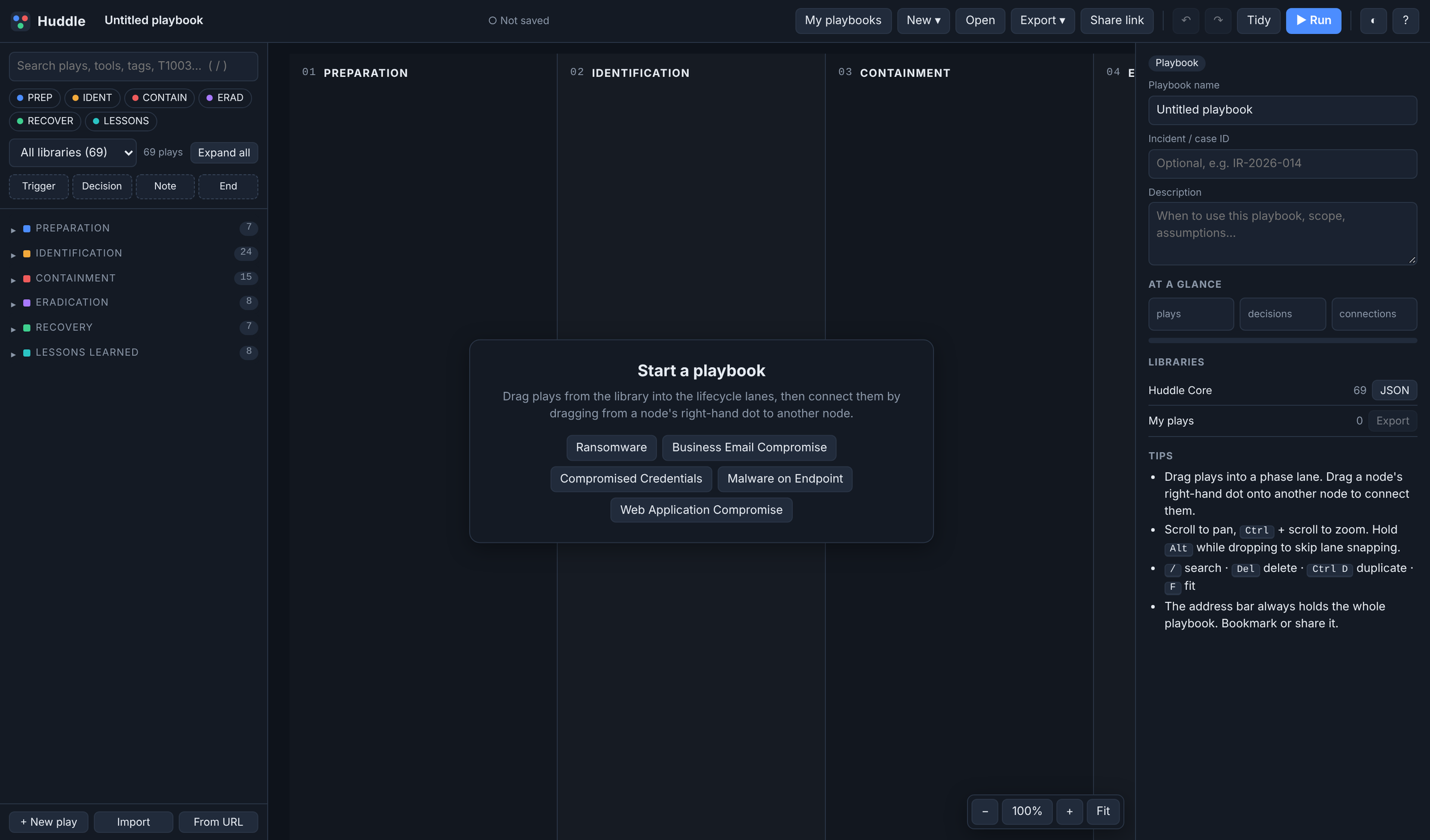 A blank playbook. The library is on the left, the lifecycle lanes in the middle, and details on the right.
Click the name at the top and call it something useful. I went with Phishing: credential harvest.
Step 2: Add a Trigger and Your First Plays
Every playbook starts with what kicked it off. Drag Trigger from the row of buttons above the library into the Identification lane, and set its label in the right-hand panel to User reports a phishing email.
Now find plays. The search box matches titles, steps, tools, tags and ATT&CK IDs, so phishing, sign-in, Okta or T1078 all work. The library groups plays by phase and starts collapsed, so searching is usually faster than browsing. Drag a play onto the canvas and it snaps into the lane for its phase, or click the + on a card to drop it in without dragging.
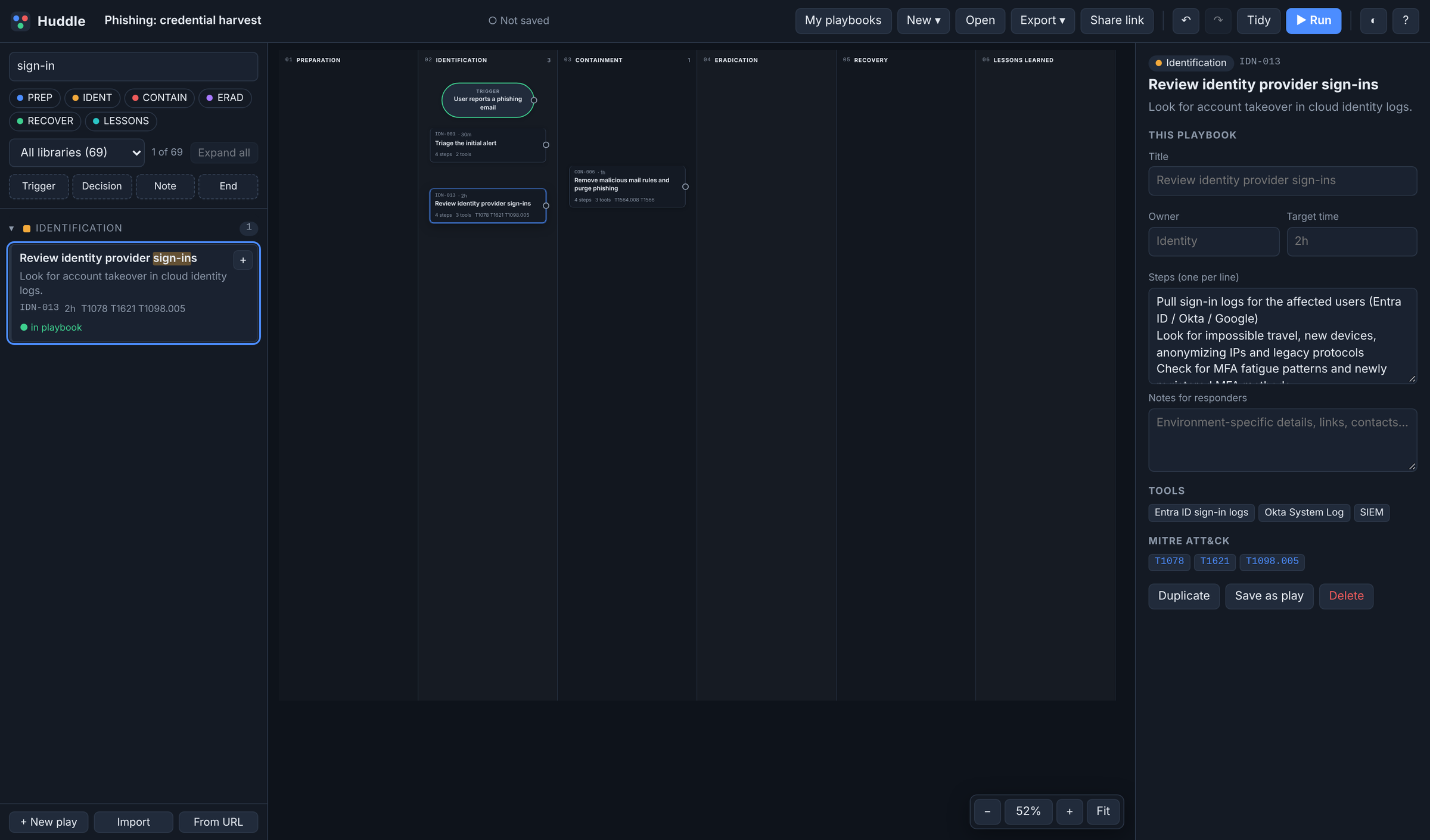 Searching for “sign-in” and dragging Review identity provider sign-ins into Identification. The right-hand panel shows the play’s steps, tools and ATT&CK techniques.
For this playbook I added:
- Identification: Triage the initial alert, Review identity provider sign-ins, Investigate mailbox activity
- Containment: Reset credentials and revoke sessions, Remove malicious mail rules and purge phishing
- Eradication: Enforce phishing-resistant MFA
- Lessons Learned: Hold post-incident review, plus an End node
Step 3: Add a Decision and Connect Everything
Playbooks branch. Drag a Decision into Identification and ask the question that splits the response: Did the user enter credentials?
To connect two nodes, drag from the dot on the right side of one onto the other. Decisions have two dots: the green one is Yes and the red one is No.
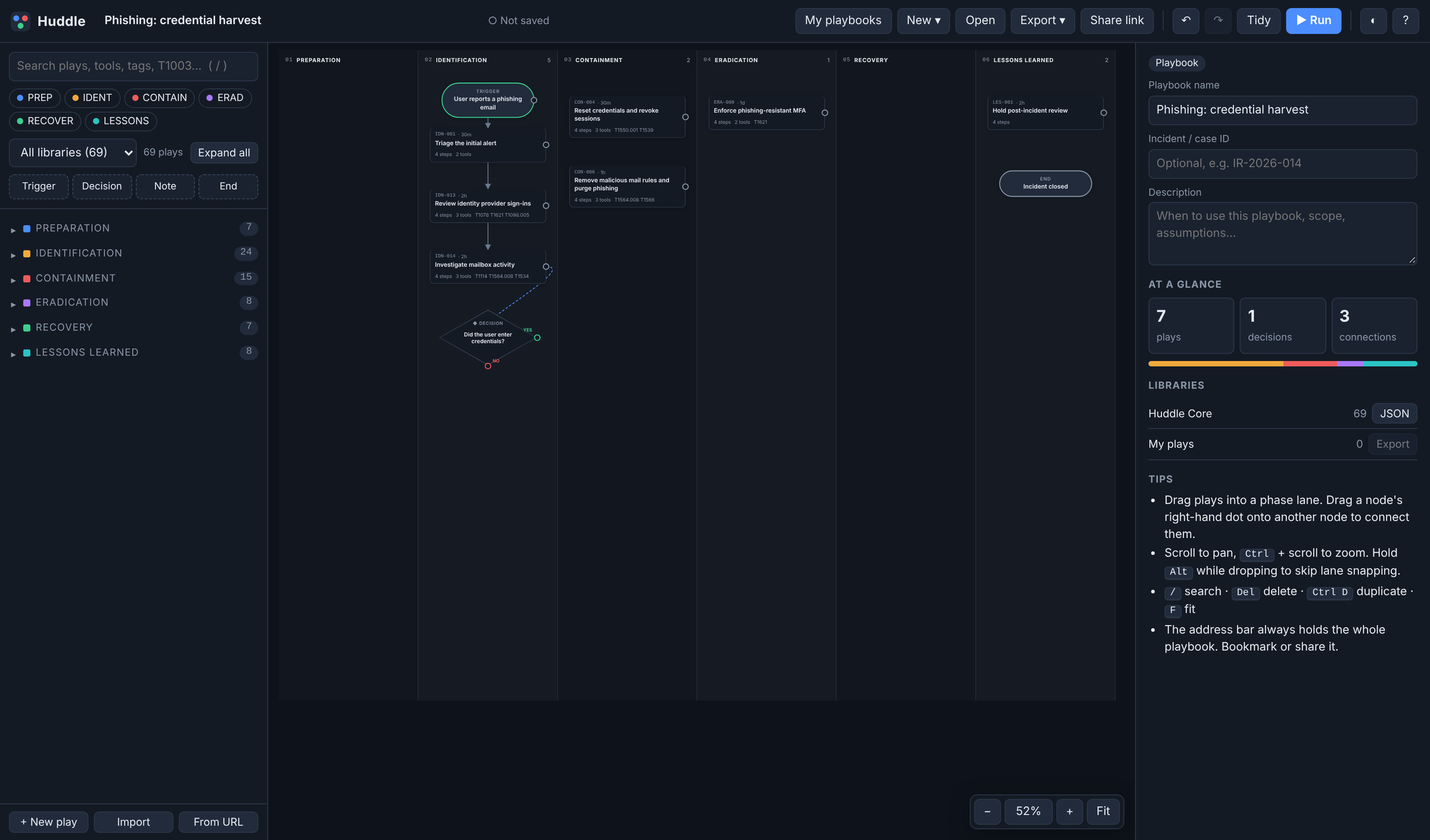 Dragging from Investigate mailbox activity to the decision. The dashed line follows the mouse until you let go on a node.
Here, Yes goes to resetting credentials and revoking sessions, then on to purging the email. No skips straight to the purge. Both paths then run through MFA hardening, the post-incident review and the end.
Step 4: Tidy Up
Click Tidy and Huddle arranges everything into its lanes, following the arrows so the flow reads top to bottom and left to right. Click Fit (or press F) to see the whole thing.
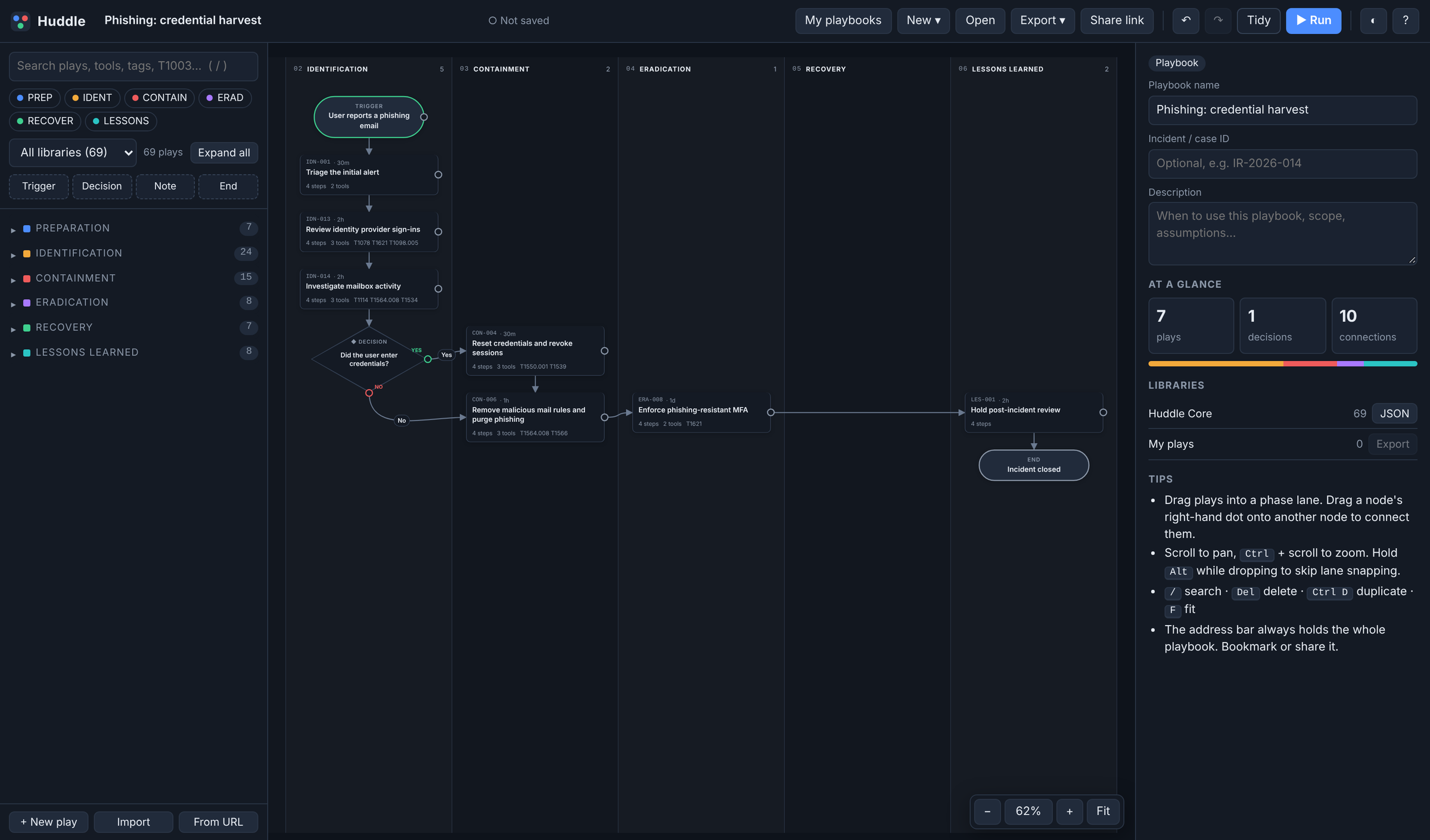 The finished flow: 7 plays, 1 decision and 10 connections. The At a glance panel shows the mix of phases.
Step 5: Make It Yours
The library is generic on purpose. Your environment isn’t. Click any node and the This playbook section lets you change its title, set an owner and target time, rewrite the steps, and add notes for responders. These changes only apply to this playbook, so the library stays clean.
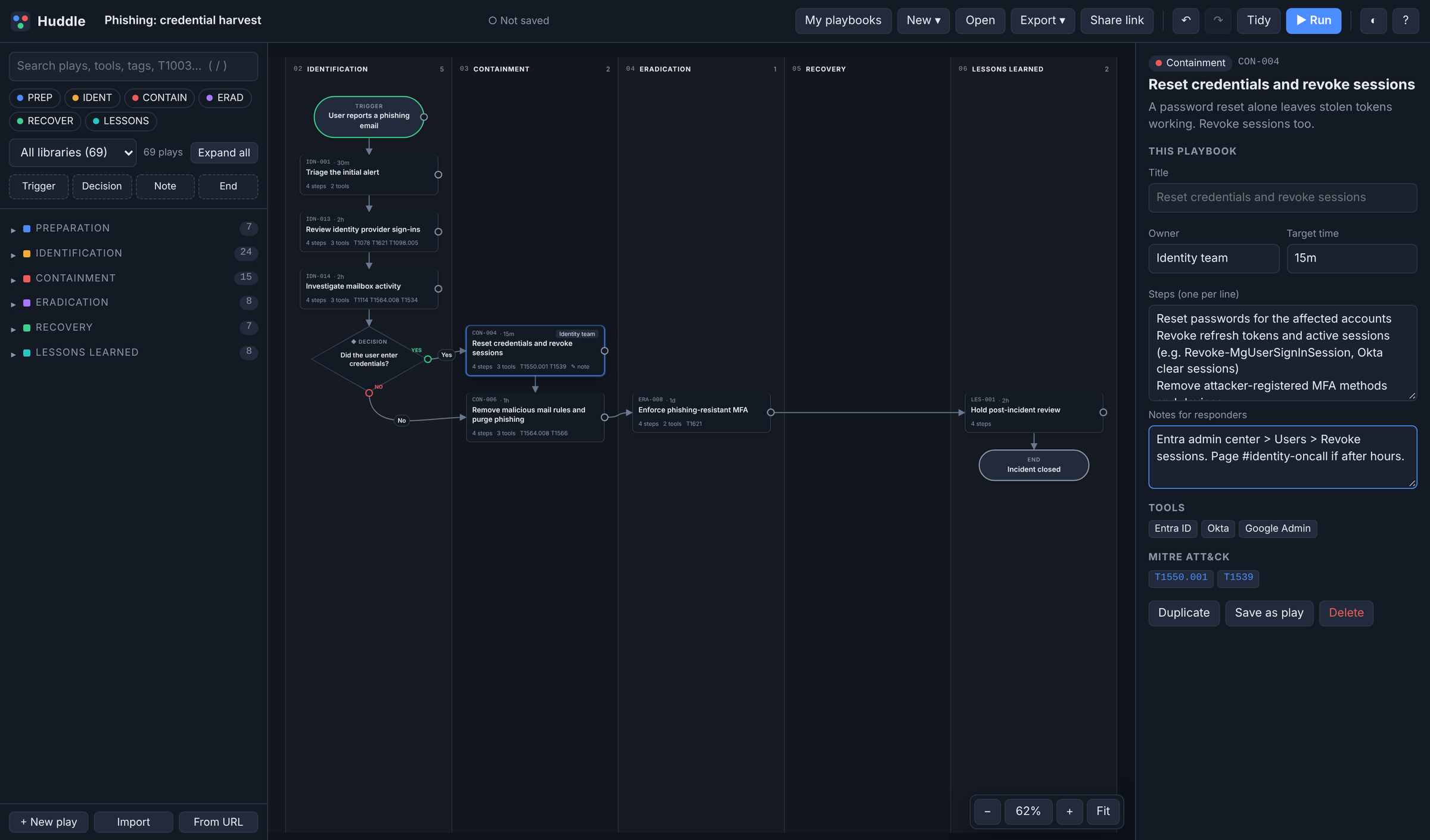 Reset credentials and revoke sessions, now owned by the Identity team with a 15-minute target and a note on exactly where to click.
If you want to reuse an edited play, Save as play turns it into one of your own. You can also create plays from scratch with + New play. Custom plays live in your browser under My plays, and they travel inside any playbook that uses them.
Step 6: Save, Share and Export
Press Ctrl+S (or click Not saved next to the name) and the playbook goes into My playbooks. From then on every edit saves automatically. My playbooks is where you open, rename, duplicate, export or delete them.
Share link copies a link with the entire playbook compressed into it, the same trick CyberChef uses. Anyone who opens it gets your playbook exactly as you left it, and since the data is after the #, it never gets sent to a server.
For responders who don’t live in Huddle, Export gives you:
- Markdown runbook with numbered steps and checkboxes, ready for a wiki, a ticket or GitHub
- Print / PDF runbook with a signature line for each step
- Mermaid diagram that renders in GitHub, GitLab or Obsidian
- CSV task list for a spreadsheet or ticketing import
- Playbook JSON to keep in a repo
- SVG of the diagram for slides and reports
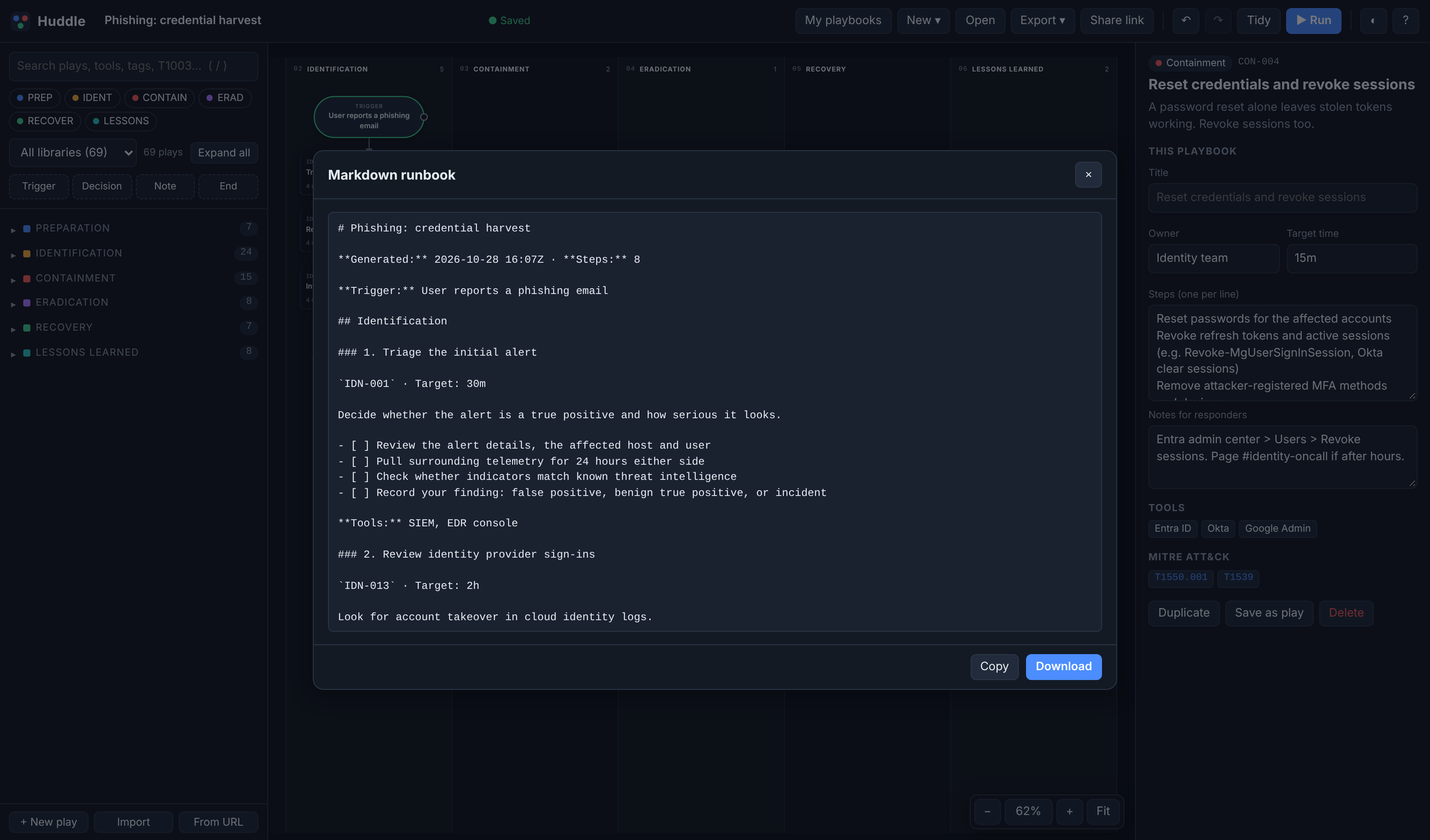 The Markdown export. Plays come out in flow order, grouped by phase, with checkboxes for every step.
Step 7: Run It
When the alert actually fires, click Run. The playbook becomes a working checklist. Enter the incident ID, tick off steps as you go, and Huddle stamps each one with the time in UTC. At a decision you pick the branch, and the steps on the path you didn’t take are marked skipped. Every play has a notes box for findings, evidence IDs and who did what.
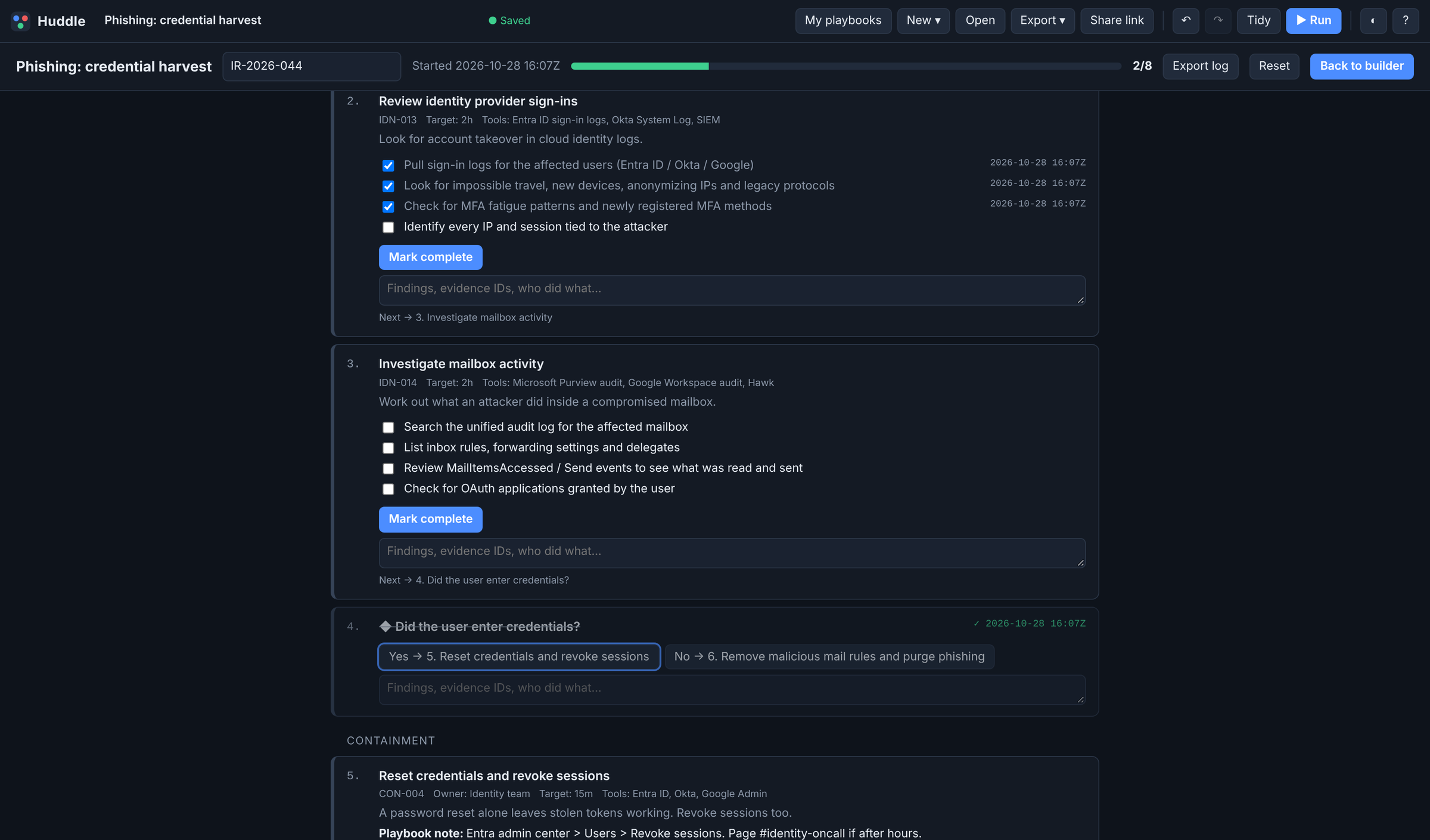 Run mode partway through. Progress is 2 of 8, the decision went Yes, and the No branch’s steps no longer count.
Export log downloads a Markdown incident log with every step’s status and a timestamped timeline, which is a great head start on the final report.
Extending Huddle
Like CyberChef, Huddle is configured through the URL:
?lib=<url>loads an extra play library (JSON or CSV) and can be repeated?pb=<url>loads a playbook JSON from somewhere like your team’s repo?template=ransomwarestarts from a template?mode=runopens straight into run mode, and?mode=viewis read-only
A library is just a list of plays. Only title is required, and the phase accepts names like “Containment” or “Detection & Analysis”:
{
  "name": "Acme IR plays",
  "plays": [{
    "id": "ACME-001",
    "title": "Page the on-call IR lead",
    "phase": "Identification",
    "steps": ["Trigger the IR-Primary service", "Confirm acknowledgement within 15m"],
    "tools": ["PagerDuty"],
    "time": "15m"
  }]
}
A CSV with one play per row works too. An unknown phase becomes a new lane, so a “Comms & Legal” workstream running alongside the technical response is one column away. You can also Import a library file or load one From URL inside the app.
Plays for an AI-Assisted SOC
More SOCs are putting AI agents to work on triage and enrichment, and the playbooks need to say who does what. Steps that start with Agent: or Human: get labeled throughout Huddle. There’s an AI-Assisted SOC library built that way: 28 plays covering how you set the agent up, triage, approval-gated containment, and what to do when the agent itself gets manipulated by something like prompt injection. People approve anything that changes a system, declare incidents and own the final calls.
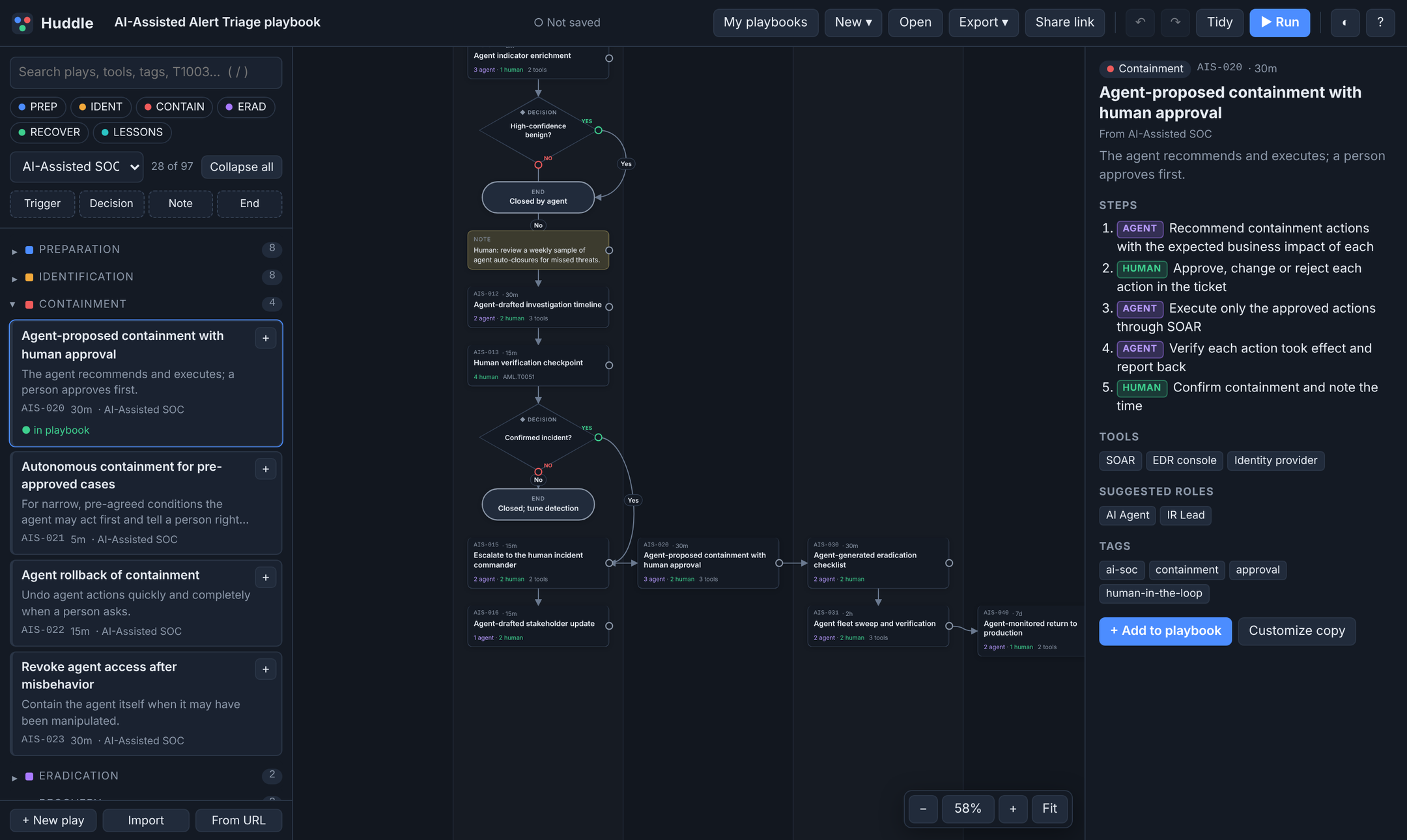 The AI-Assisted Alert Triage template. Each step is tagged AGENT or HUMAN, and the cards on the canvas show the split.
Load it with jon.glass/huddle/?lib=plays/ai-soc.json, then pick New → AI-Assisted Alert Triage.
Shortcuts
/jumps to search, and↓moves from the search box into the results↑↓←→move through the library or follow the flow on the canvas, andEnteradds the highlighted play[and]switch between the library and the canvasCtrl+Ssaves to My playbooksCtrl+Z/Ctrl+Shift+Zundo and redo,Ctrl+Dduplicates a node, andDeldeletes itFfits the diagram to the screen?opens the help, including every URL option
Try It
Open Huddle, pick New → Ransomware, and click Run. Thirty seconds later you’ll have a timestamped checklist and a good idea whether this is useful for your team.
The plays are general guidance, so adapt them to your environment before you lean on them in a real incident. If you build a library for your team or have plays you think belong in the core set, let me know.