
Learning pandas One Block at a Time
Most DFIR triage I do eventually ends up in pandas. EvtxECmd, Hayabusa, PECmd and MFTECmd all hand you a CSV, and the questions are always the same: keep these rows, fix that timestamp, pull the IP out of this string, match against that list, count the rest. pandas is great at that. It’s also a wall for a lot of analysts, and even people who know it end up rewriting the same twenty lines in every case.
My first idea was Scratch for DFIR Python: snap blocks together, get a working script. That gets clumsy fast. General Python is loops, nesting and branches, and those turn into a mess of blocks once a script grows past a screen. pandas mostly isn’t like that. A typical analysis is one DataFrame going through a straight line of steps, and a vertical stack of blocks is a straight line of steps.
So I built Shifu (the word means “master” or “teacher,” and yes, also the red panda), a browser-based editor where you build pandas scripts by stacking blocks. You can try it right now at jon.glass/shifu.
Goals
- Blocks map to pandas. Every block is one pandas operation, and it says which one:
query,to_datetime,str.extract,merge,groupby. - Show the data at every step. Each block shows how many rows came out of it, and clicking one shows the DataFrame right after it, with dtypes.
- The code is the product. Shifu writes real, readable pandas as you build. Copy it, download a
.py, or export a Jupyter notebook with one cell per block. - Feed the other tools. Output blocks shape the result for Mill or Spoke and send it over in one click.
- Keep it local. Like Spoke, Mill and Huddle, everything runs in the browser. There is no server, and nothing gets uploaded.
Step 1: Pick a Starter Recipe
Shifu opens with six starter recipes, each built for output from a tool you probably already run.
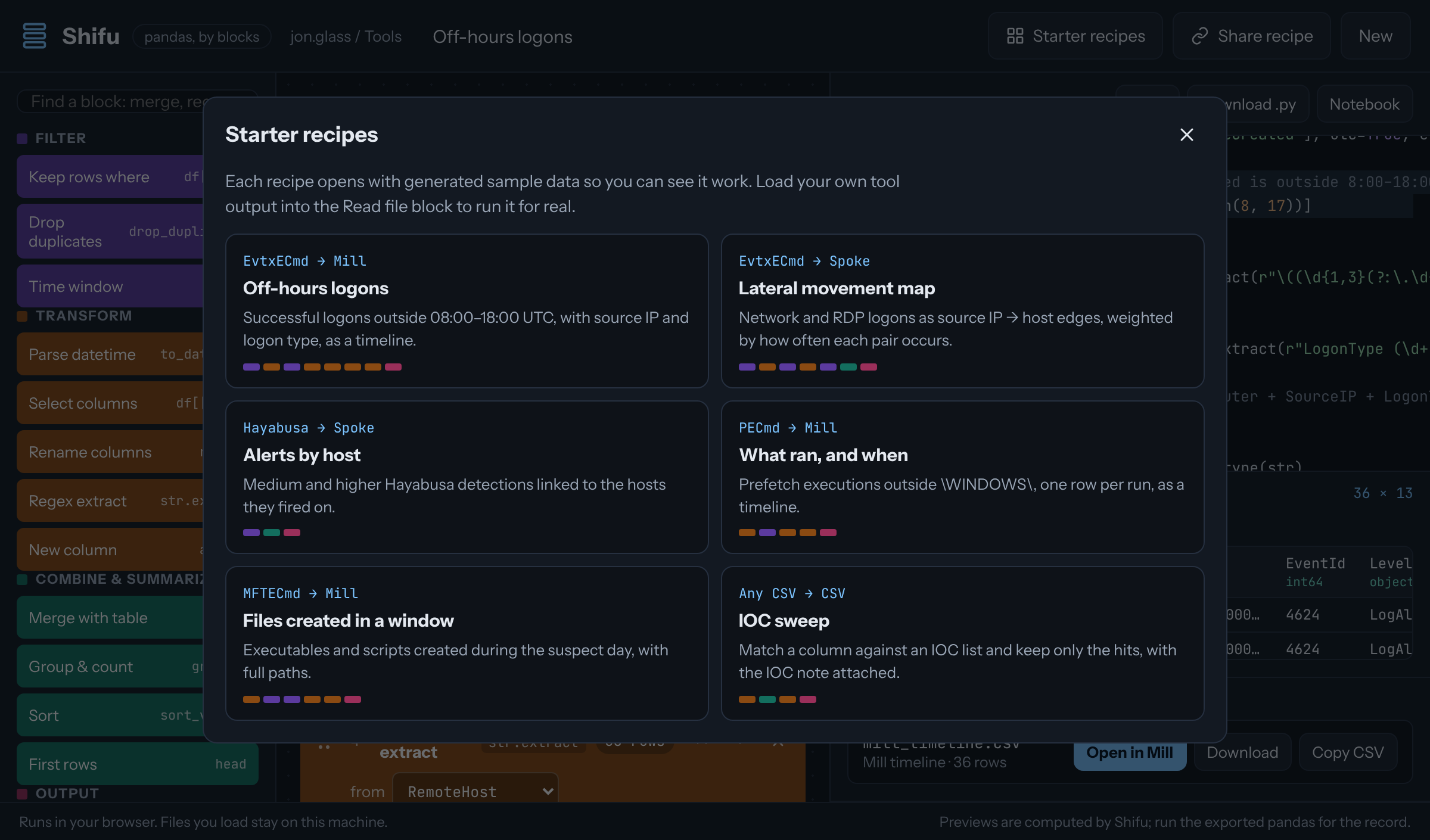 Six recipes for EvtxECmd, Hayabusa, PECmd, MFTECmd and IOC lists. The colored bars show which kinds of blocks each one uses.
- Off-hours logons (EvtxECmd → Mill): successful logons outside business hours, with source IP and logon type
- Lateral movement map (EvtxECmd → Spoke): network and RDP logons as source IP → host edges
- Alerts by host (Hayabusa → Spoke): medium and higher detections linked to the hosts they fired on
- What ran, and when (PECmd → Mill): prefetch executions outside
\WINDOWS\ - Files created in a window (MFTECmd → Mill): executables and scripts created on the suspect day
- IOC sweep (any CSV → CSV): match a column against an IOC list and keep the hits
Every recipe opens with generated sample data so you can see it work. The samples are fictional, but they tell a story: password spraying, an off-hours RDP logon from a Tor exit node, then PsExec, Mimikatz and rclone. Load your own CSV into the Read file block to run a recipe for real. For this post, let’s walk through Off-hours logons.
Step 2: Read the Recipe Top to Bottom
The recipe is eight blocks under a Read file block. Each one shows its row count on the right, so you can see where the data narrows.
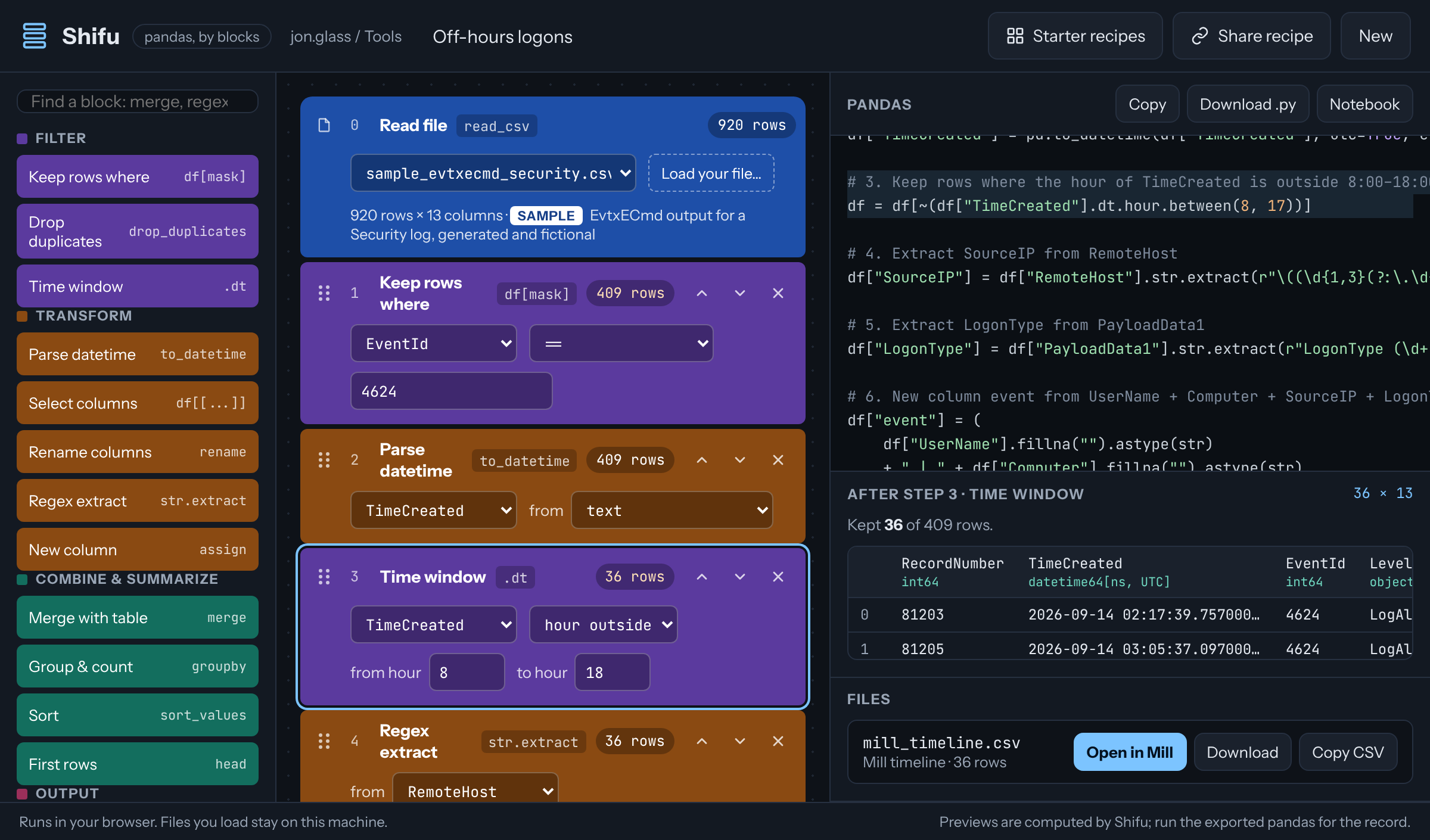 920 events in, 409 successful logons after step 1, and 36 outside business hours after step 3. The preview on the right shows the DataFrame after the selected step.
- Keep rows where
EventId == 4624: successful logons only. - Parse datetime on
TimeCreated, so it’s a real UTC timestamp instead of text. - Time window: keep rows where the hour is outside 08:00–18:00 UTC.
- Regex extract the IP from
RemoteHost, which EvtxECmd writes asWS-0187 (10.0.4.51). - Regex extract the logon type from
PayloadData1. - New column that joins user, host, IP and logon type into one readable
eventline. - Select columns to drop everything else.
- Send to Mill.
Click any block and the code panel highlights the pandas it became. Step 3 is a good one to look at:
# 3. Keep rows where the hour of TimeCreated is outside 8:00–18:00 UTC
df = df[~(df["TimeCreated"].dt.hour.between(8, 17))]
That’s the kind of line I’d have to look up every time. Here you set two numbers and read the answer.
Step 3: Let It Tell You What’s Wrong
Order matters in pandas, and it matters in Shifu too. Drag Parse datetime below Time window (or use the arrows on the block) and Time window stops working.
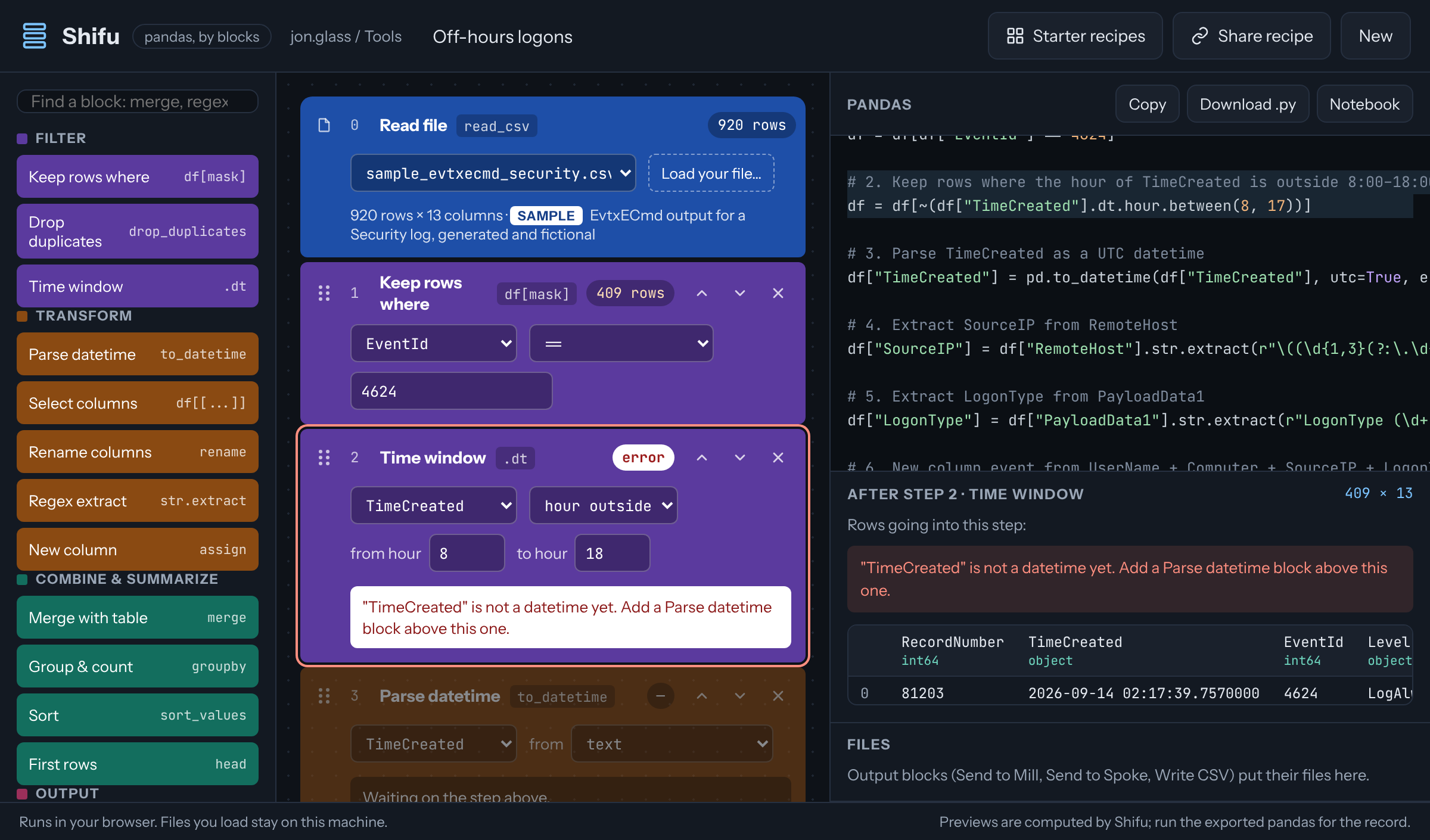 Time window can’t filter by hour on text. The preview shows why: TimeCreated is still
 object, not datetime64.
The block turns red and says what to do about it, and everything below it waits. The preview shows the rows going into the broken step, dtypes included, so you can see that TimeCreated is still a string. That’s the most common pandas mistake I see, and here it’s obvious instead of a stack trace.
Move it back and the counts come back.
Step 4: Export the Code
The finished recipe comes out as 18 lines of plain pandas, each under a comment that says what the block does. Copy puts it on your clipboard, Download .py saves a script, and Notebook saves an .ipynb with one cell per block. Every cell before the output ends in df.head(), so you can step through it and watch the data change.
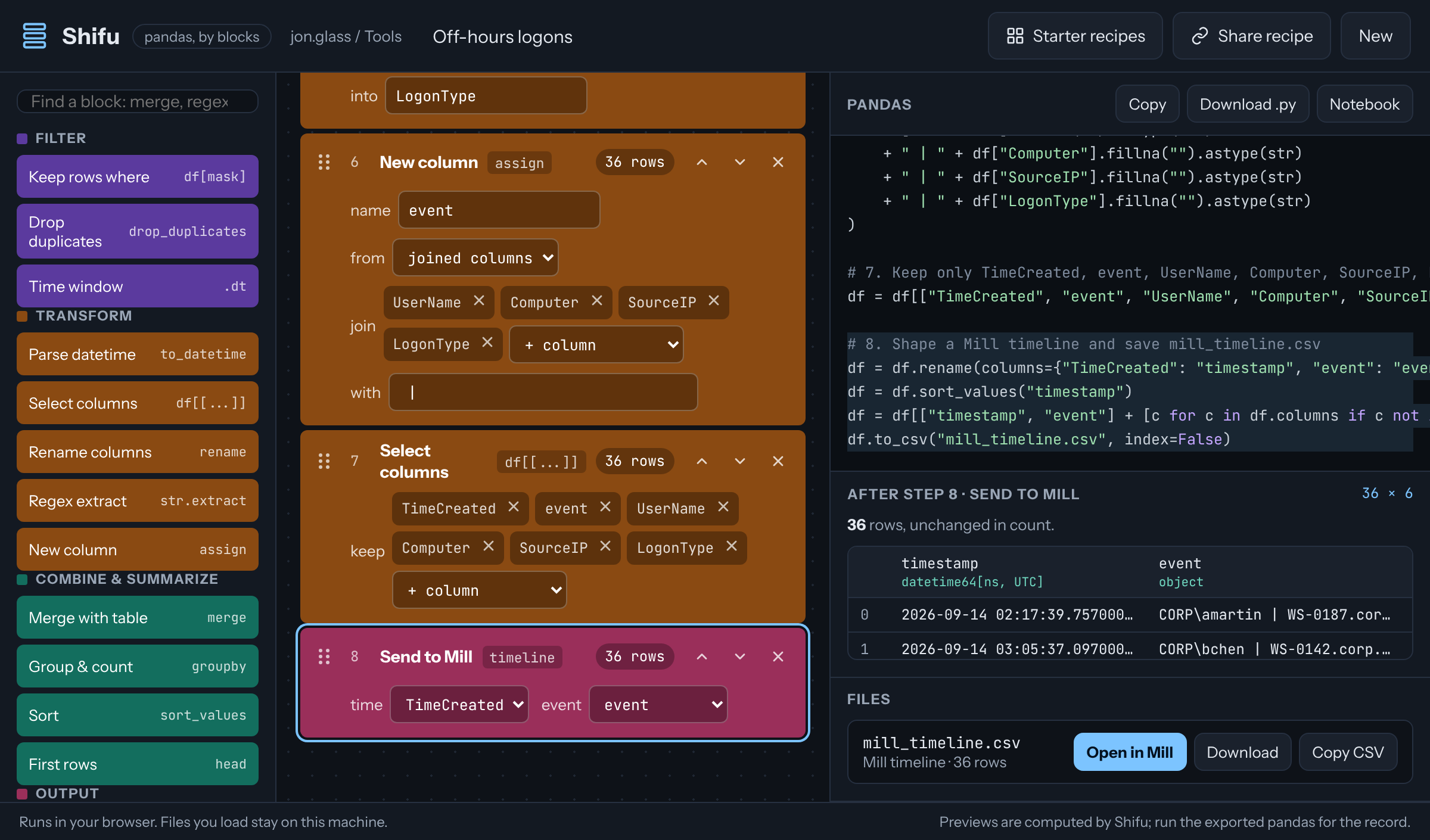 The Send to Mill block renames the columns to what Mill expects and sorts by time. Its file shows up under Files.
Nothing in the export depends on Shifu. It reads the same CSV you loaded and writes the same output, so you can run it on a forensic workstation, change it, or paste it into a case notebook.
Step 5: Send It to Mill or Spoke
Output blocks put their files in the Files panel. Send to Mill builds a timestamp, event, … timeline, and Open in Mill loads it straight in.
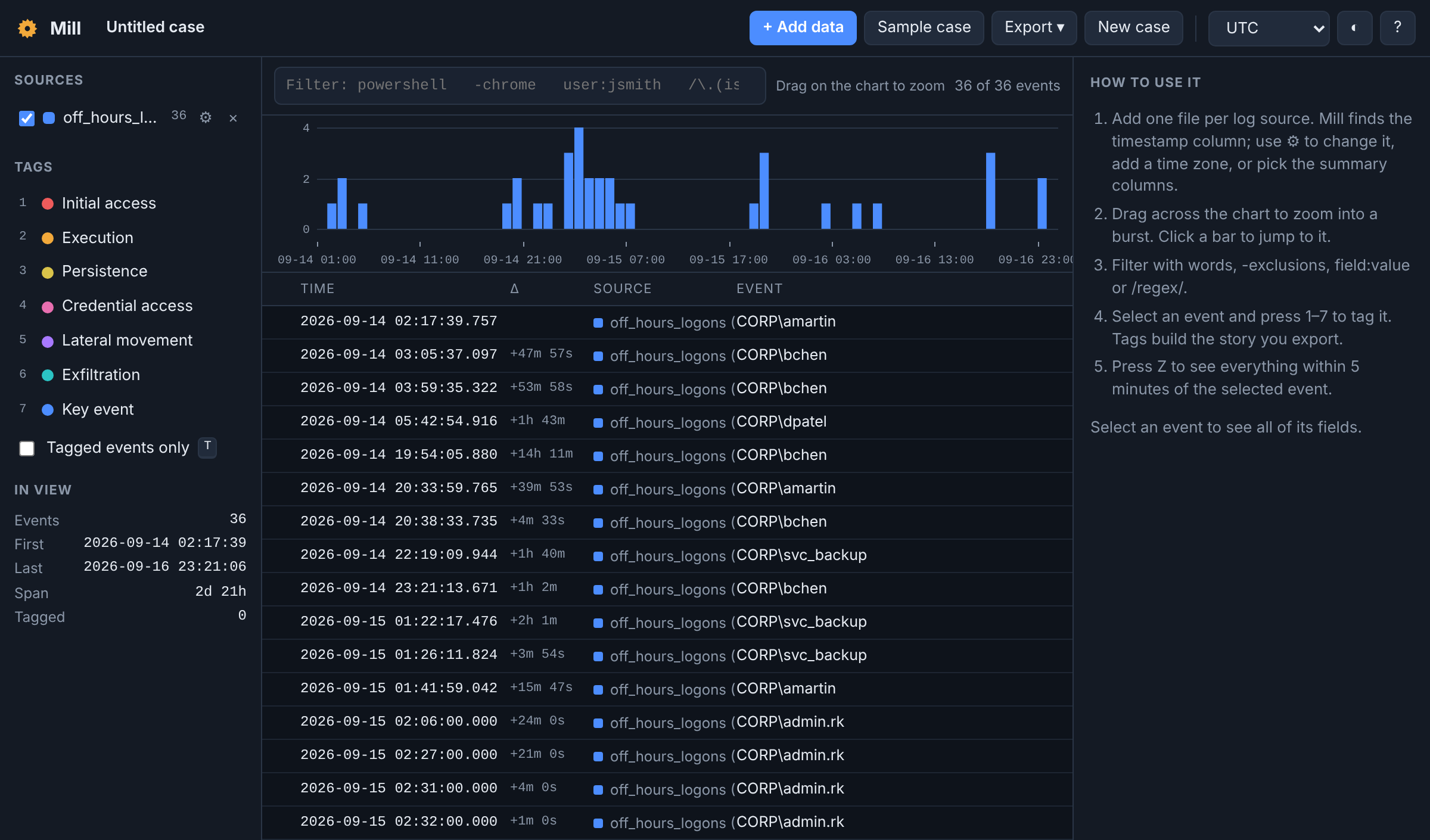 36 off-hours logons in Mill. The cluster after 01:00 on 09-15 is admin.rk logging on to FS-01, then DC-01, SQL-02 and WS-0187 within half an hour.
The Lateral movement map recipe does the same thing for Spoke. It keeps network and RDP logons, pulls out the source IP, counts each source → host pair, and Open in Spoke loads the edges using Spoke’s own share link.
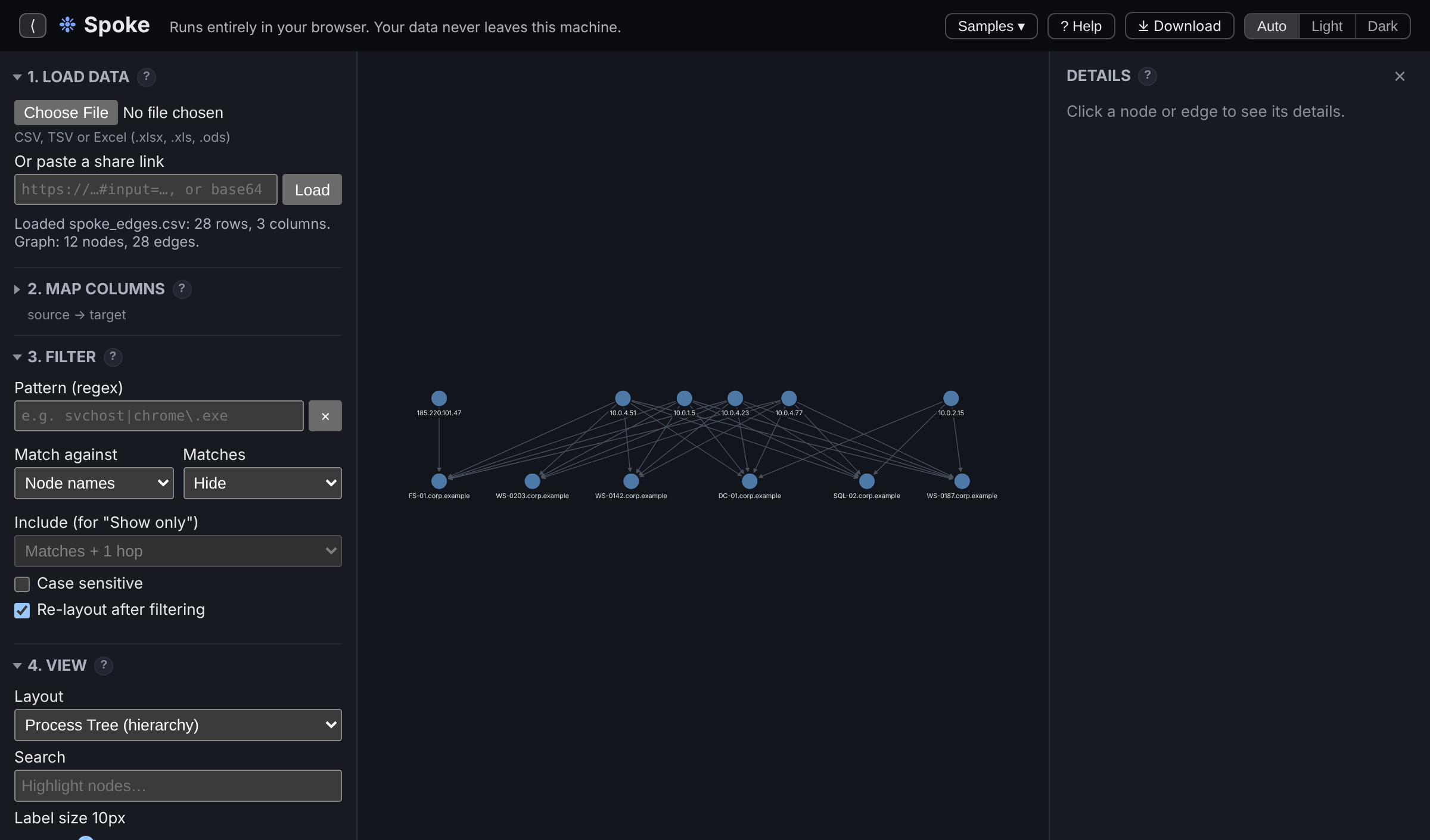 12 nodes and 28 edges. Everything is internal except 185.220.101.47, which only ever logs on to FS-01.
Building Your Own
Drag a block from the palette into the recipe, or click it to add it after the selected step. Columns are picked from a list of what actually exists at that step, so you can’t mistype a column name. The blocks so far:
- Filter: Keep rows where (
==,contains,matches regex,is one ofand more), Drop duplicates, Time window - Transform: Parse datetime (text, epoch seconds or milliseconds, FILETIME), Select columns, Rename columns, Regex extract, New column
- Combine & summarize: Merge with table, Group & count, Sort, First rows
- Output: Send to Mill, Send to Spoke, Write CSV
Merge with table is the one I use most. Load a second file, like an IOC list, and keep only the matches, flag them, or drop them.
Share recipe gives you a link or a short code that holds the blocks and their settings. Your data is never in it, so you can send a recipe to someone who has their own copy of the evidence.
A Note on the Previews
The previews in Shifu are computed in the browser, by Shifu, with its own copy of each pandas operation. That keeps them instant on big files, but it’s not pandas itself. For anything that goes in a report, run the exported code.
Try It
Open Shifu, pick Starter recipes → Off-hours logons, and click through the blocks. Then drop in a real EvtxECmd CSV from your last case and see what shows up after hours.
If you build a recipe you think belongs in the starter set, or there’s a block you keep wishing for, let me know.