
Spoke: Drop a CSV, See the Relationships
A lot of security data is really a graph pretending to be a spreadsheet. A process tree is parent and child PIDs. An insider risk case is users, hosts, files and USB devices tied together by actions. You can grep through those rows all day, but the story usually pops the moment you can see the shape of it.
So I built Spoke, a browser-based tool that turns rows like who → did what → to what into an interactive graph. You can try it right now at jon.glass/spoke.
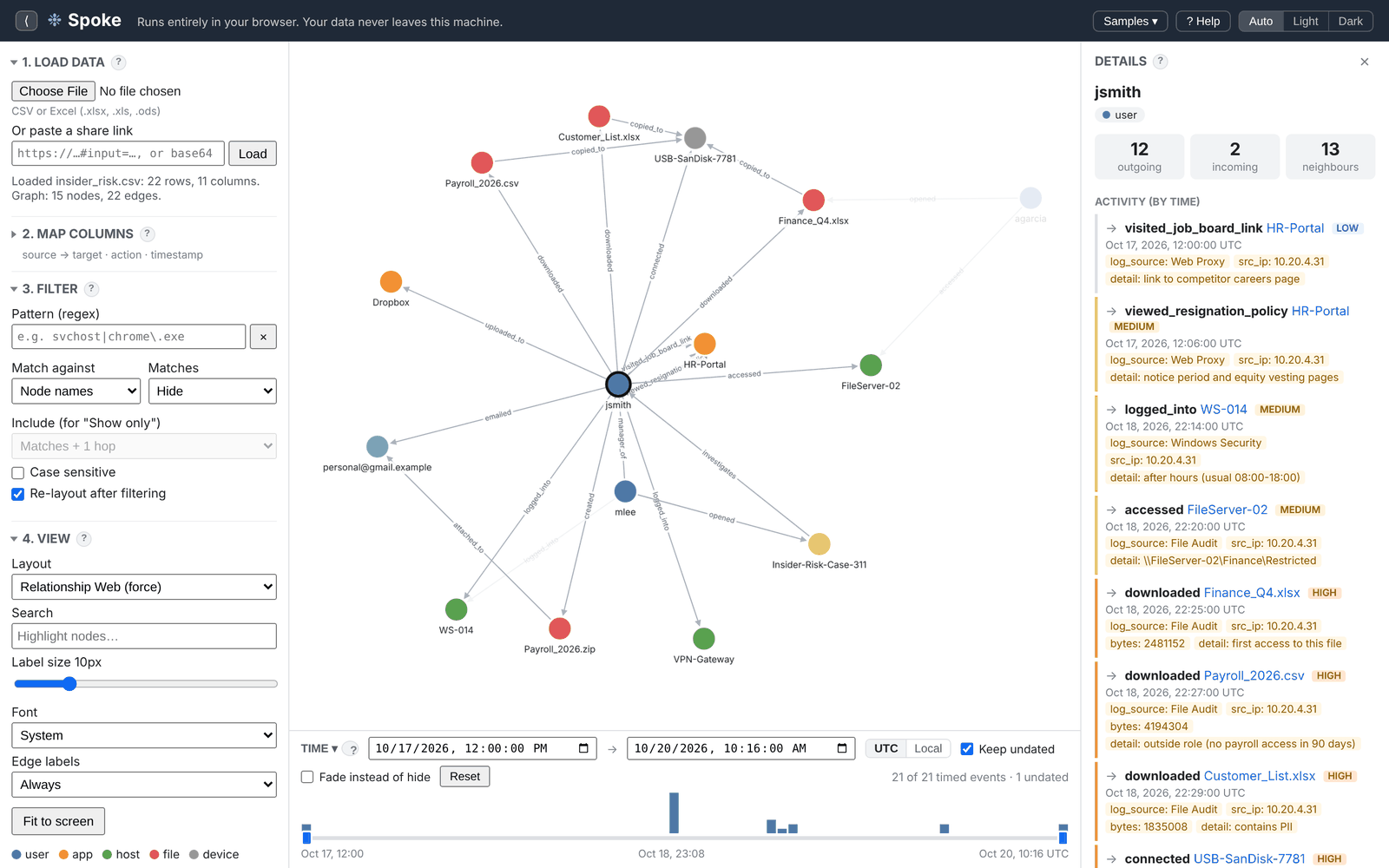 The Insider risk sample with jsmith selected. The Details panel lists every action in time order.
Goals
- Low code. Anyone on the team should be able to use it by visiting a web page. No installs, no database.
- Versatile. The same tool should handle process parent-child chains and insider risk webs without changing code.
- Keep the data local. Insider risk data is sensitive. Nothing should be uploaded anywhere.
That last one drove the whole design. Everything runs in the browser. Node.js is only used to build it, and the output is a single static page, which is how Spoke lives right here on this GitHub Pages blog. Your files never leave your machine because there is no server to send them to. There is also a Download button that gives you the whole app as one HTML file for offline or air-gapped use.
Under the hood it is Cytoscape.js for the graph, dagre for hierarchical layouts, PapaParse and SheetJS for reading files, and Vite to bundle it.
The Workflow
The sidebar walks you through five steps: Load, Map, Filter, View and Export. If you just want to poke at it, the Samples menu has four datasets ready to go:
- Insider risk: a user’s activity before leaving, with files, USB and email
- Process tree: a small malware process hierarchy
- Endpoint activity: a noisy three-sheet Excel export for practising filtering
- EDR export: repeated process names and IDs, to show why combined keys matter
1. Load
Spoke takes CSV or Excel (.xlsx, .xlsm, .xlsb, .xls, .ods). For workbooks with several sheets you can pick one, or choose All matching sheets to stack every sheet with the same columns. A sheet column records where each row came from, and summary or README tabs are skipped.
2. Map
Every row becomes an edge between two nodes. You pick the Source, Target, Relationship, optional Source type and Target type (which drive the colours and legend), and a Time column. Spoke guesses all of these from your column names, so a lot of the time you just check them and hit Build graph.
The feature I care most about here is combined keys. In real EDR data, a name alone isn’t unique. There are dozens of cmd.exe processes, and process IDs get reused across machines. If you map on the name alone, every cmd.exe collapses into one node and the tree turns into nonsense.
+ Combine with another column lets you build a node’s identity from several columns, so ProcessName + ProcessId + Hostname becomes cmd.exe (3400, WS-01). A preview shows what the IDs will look like, and Spoke suggests name/ID pairs automatically, adding the host column when it sees more than one machine. If your data has a ProcessGuid, mapping on that alone is the most reliable option.
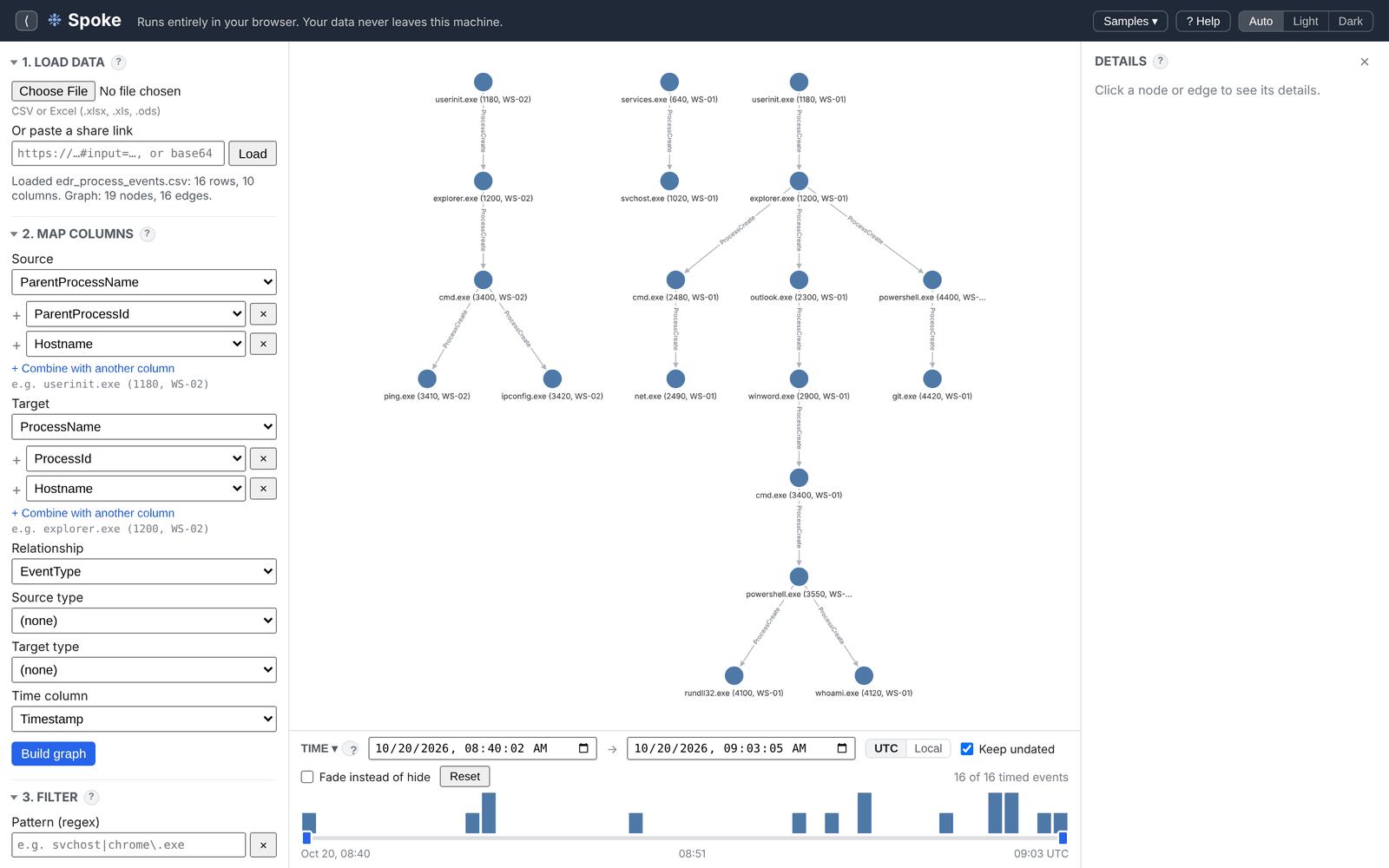 Process name, ID and host combined into one key, so each process instance is its own node.
3. Filter
Big exports are mostly noise, so the filter takes a regular expression and applies it as you type. You can match against node names, the relationship label, or any column in the row, such as severity, user or command line. Then either Hide the matches, or Show only the matches plus context: one to three hops of neighbours, or the entire connected group. Actual matches are outlined in purple.
A few examples against the Endpoint activity sample:
| Pattern | Settings | Result |
|---|---|---|
svchost\|chrome\|teams\|onedrive\|msmpeng |
Node names, Hide | 224 nodes drop to a few dozen and the attack chain on WS-07 stands out |
high\|critical |
Any column, Show only | Just the serious events |
rundll32 |
Node names, Show only, +1 hop | One process and everything it touched |
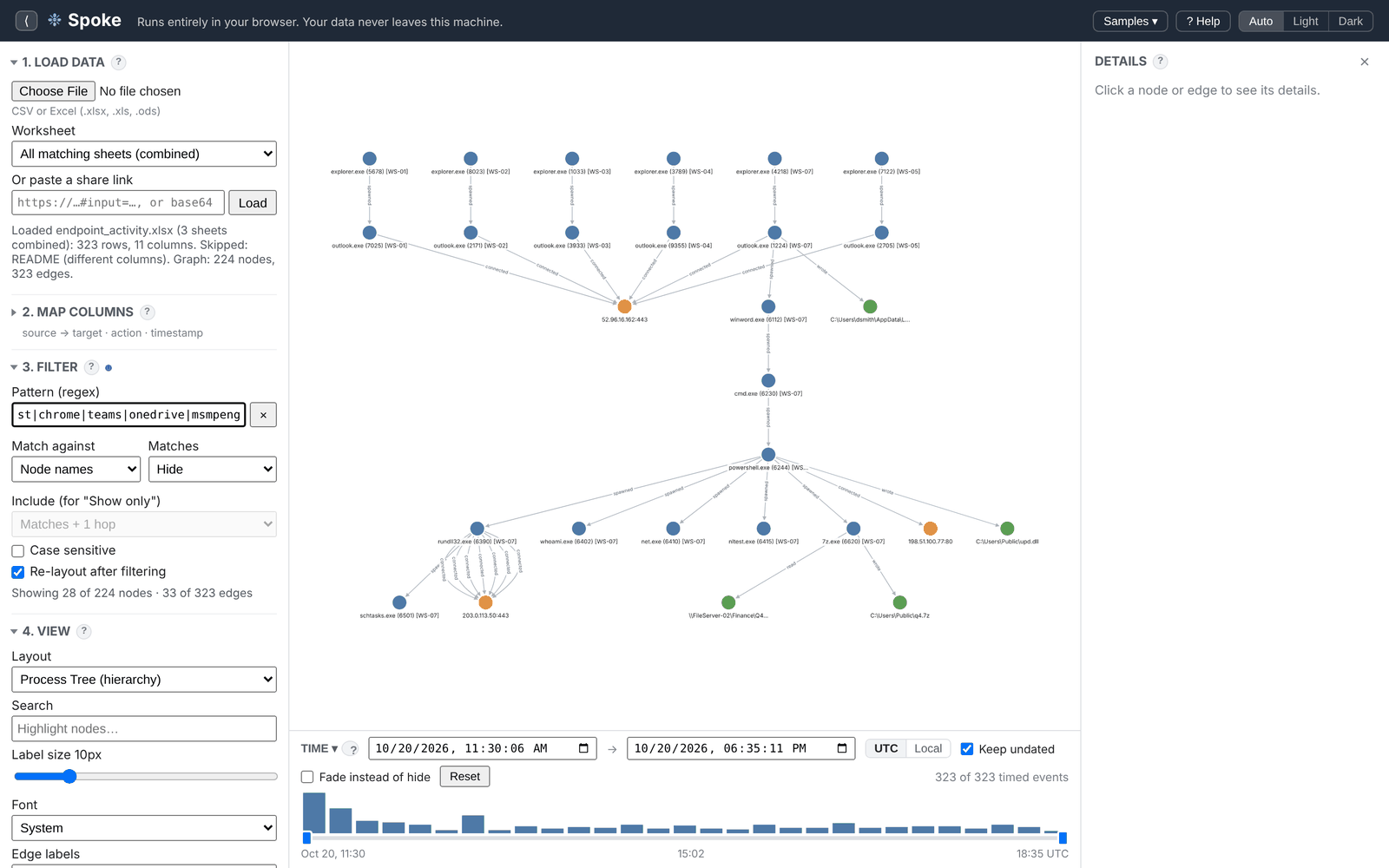 Hiding routine processes takes the Endpoint activity sample from 224 nodes to 28, leaving the attack chain on WS-07.
The built-in help includes a regex cheat sheet, since not everyone who touches this will live in regex the way we do.
The Time Bar
When there is a time column, a histogram appears under the graph showing when events happened, so bursts stand out. Drag across it to pick a window, click a bar to zoom into that slice, or type exact times. Nodes stay put as you scrub, so you can watch activity come and go.
Fade instead of hide keeps out-of-window items as faint ghosts for context, and Keep undated holds onto rows with no timestamp, like an org chart link. You can switch the whole app between UTC and local time. It reads ISO 8601, common date formats, Unix epoch seconds or milliseconds, and Excel dates. The time window and the regex filter stack: something is shown only if it passes both.
On the Insider risk sample, clicking the tall bar on the evening of 18 Oct narrows the graph to just the late-night downloads and USB copies.
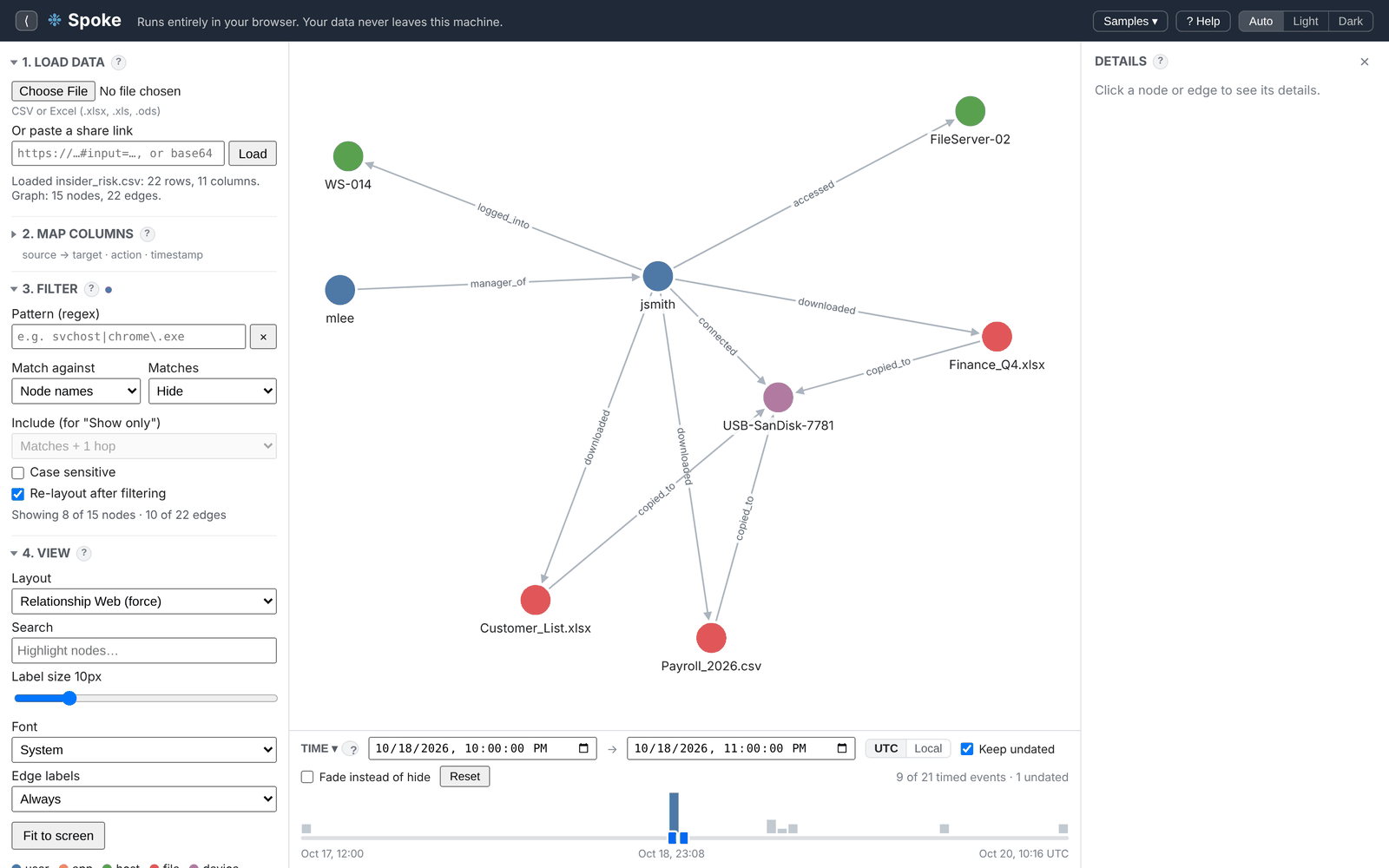 One click on the histogram narrows the Insider risk sample to the late-night hour on 18 Oct.
4. View
Two layouts cover most cases:
- Process Tree for hierarchies like parent → child processes
- Relationship Web, a force-directed layout for “who touched what” questions
Clicking a node highlights its full chain, everything upstream and downstream, and fades the rest. Click rundll32.exe in a process tree and you immediately see how it got there. Search outlines matches in orange without hiding anything, and you can adjust label size and font, or set edge labels to show only on hover to keep dense graphs readable.
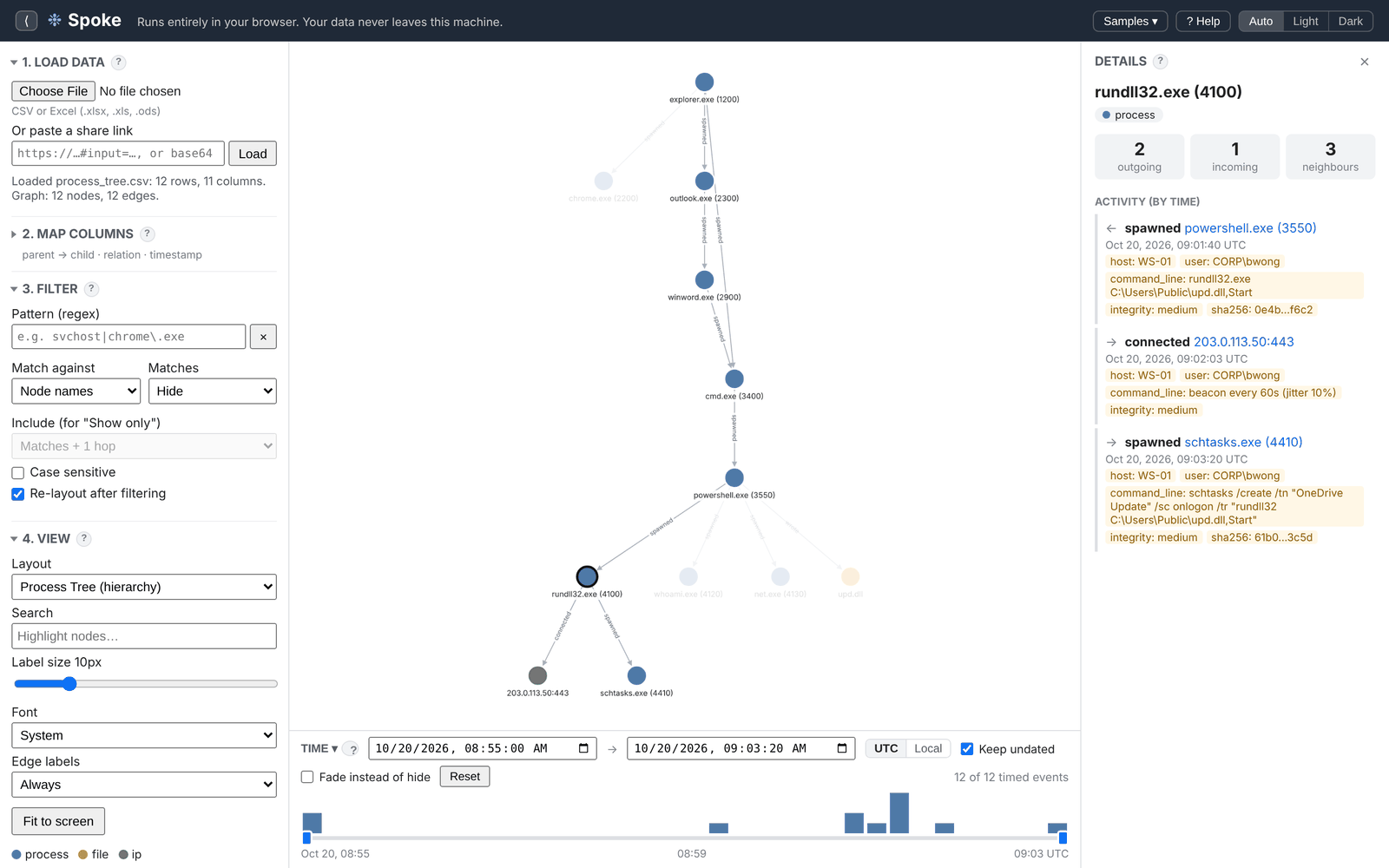 Selecting rundll32.exe highlights the full chain from explorer.exe through Outlook, Word, cmd and PowerShell.
The Details panel is where a lot of the investigation actually happens. For a node, it shows its type, its number of connections, and an Activity list of every relationship in time order, with severity, IPs, command lines and any other columns. Severity, risk or priority columns are colour-coded. Click a name to jump to that node. For an edge, you get the full original row from your file.
5. Export
- PNG or JPG at 1×, 2× or 4× (good for print), or SVG so it stays sharp in slides and reports
- CSV of the original rows behind what’s visible, which loads straight back into Spoke and is handy for passing along a trimmed dataset
- JSON of visible nodes and edges with their full records and the filter used
Exports match the screen, so anything filtered out or outside the time window is left out.
Plays Nicely with CyberChef
Send to CyberChef opens the visible rows in CyberChef in a new tab, ready for decoding, extracting or reformatting. It uses CyberChef’s trick of putting the data after the # in the link, which browsers never send to a server, so it stays local there too.
Share Links
Copy share link packs the loaded file, compressed, together with your column mapping, layout, filter and time window. Whoever opens the link sees exactly the same view.
The important caveat: the data is in the link. Anyone with the link can see it, and links end up in browser history. Treat a share link like the file itself. Browsers also cap links at about 2 MB, so for big datasets share a filtered CSV export instead.
Linking from Other Tools
Because the data rides in the URL, scripts and other tools can open Spoke pre-loaded. Put base64 of a CSV or Excel file after #input=, gzip-compressed or not, and optionally set the mapping and view ahead of it:
https://jon.glass/spoke/#src=parent&tgt=child&layout=tree&input=cGFyZW50LGNoaWxk...
Supported settings include:
src,tgt: source and target columns, or a JSON list to combine them, e.g.["ProcessName","ProcessId"]rel,stype,ttype,time: the other column mappingslayout:treeorwebre,scope,mode,depth,case: the filterfrom,to,undated,fade: the time window
Values need to be URL-encoded, and anything left out is guessed as if you had opened the file normally. That makes it easy to have a triage script or SIEM query spit out a link that drops an analyst straight into the right view.
Shortcuts
?opens the help/jumps to the filter box[hides or shows the sidebarFfits the graph to the screenEscclears the selection
Try It
Open Spoke, pick Samples → Insider risk, and click the jsmith node. The whole chain lights up and the Details panel lists everything jsmith did, in order.
If you work in DFIR or insider risk and have an export format you’d like it to handle better, let me know.